

Appointments is an optional add-on module — turn it on from Settings →
Add-ons (Admin PIN required) if you don’t see it in your menu. It works
hand in hand with your services; set up which services can be booked
first — see Bookable services setup.
Understanding the fields
The booking form captures:- Service — which service is being booked. The list only shows services you’ve marked bookable, and each shows its default duration.
- Start date & time — when the appointment begins. BillBasket fills the end time automatically from the service’s duration, so you don’t set it by hand — change the duration on the booking if this one runs longer.
- Customer (optional) — the party the booking is for; picking one lets you send them a confirmation or reminder later.
- Staff / provider (optional) — the employee delivering the service. If you assign a provider, that person can only take one appointment at a time, so assigning a provider effectively caps that slot at one booking.
- Notes — anything the staff should know for the visit.
The day agenda
The home screen shows one day’s bookings in time order, with a week strip to jump between days. Each booking carries a status — booked, confirmed, in-progress, completed, cancelled, or no-show — that you move along as the visit happens.Capacity — no accidental double-booking
Each service has a parallel capacity (how many can run at once — see Bookable services setup). When a time slot is already full, BillBasket blocks the booking with a “slot full” message instead of overbooking — and offers to add the customer to the waitlist instead.See it on your device
- Windows PC
- Phone
- Tablet
The New booking form — Service picked (with its duration shown
right under it), start date/time with the end time and duration
calculated automatically, then customer search, staff/provider picker,
Notes, and a Repeat toggle for recurring bookings.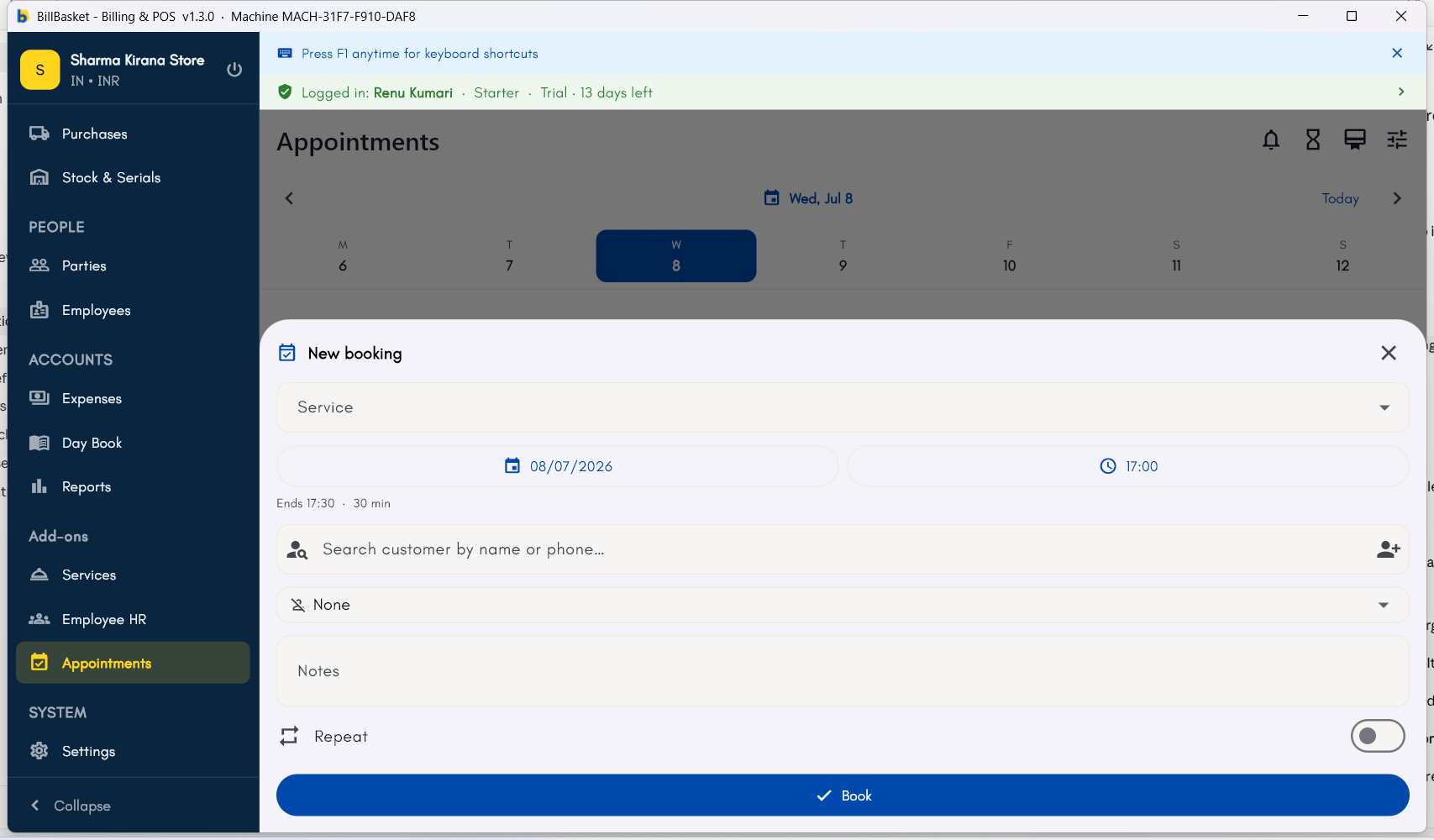
Try it: James Spa
1
Open Appointments and tap Book
James Fernandes opens the Appointments calendar at James Spa and taps
the Book button to reserve a slot for a returning client.
2
Pick the service and time
He selects “Aromatherapy Massage” — BillBasket fills in the 60-minute end
time automatically — sets the start to 4:00 PM, and picks the client and
Priya as the provider.
3
See it on the day agenda
The booking appears on today’s agenda in time order, marked booked.
As the client arrives James moves it to in-progress, then
completed when the session ends.
4
Hit a full slot
When another client asks for the same 4:00 PM slot with Priya — already
at capacity — BillBasket shows “slot full” and offers to add them to the
waiting list instead of double-booking.