

Understanding the fields
Invoice Template & Branding
- Invoice template / Estimate template — separate dropdowns picking the PDF layout used for invoices and for estimates respectively, so you can run a different look for each document type.
- Bank name / Account number / IFSC / routing / Account holder name — shown on the invoice’s bottom strip for customers paying by transfer. These are the same bank details set in your Business Profile — editing them here updates the same record.
- Signature — an image (JPG/PNG, up to 2 MB) uploaded to print at the bottom of invoices, standing in for a physical signature.
- Show batch number / Show serial number / Show expiry / Show tax codes — toggles controlling extra detail rows on the printed bill. Show batch number only prints anything for products that actually carry a batch/lot number — for a product with no batch tracking, turning this on has no visible effect. Similarly, Show serial number only matters for serial-tracked products.
Invoice Numbering
- Series name — an internal label to tell series apart (e.g. “Main counter,” “Estimates”).
- Prefix — the text before the number on a document (like
INV-orEST-). - Next number — the counter that increments each time a new document uses this series. You can edit this manually (for example, to match a paper book you’re switching from), but doing so can create duplicate or skipped numbers if set carelessly.
- Number padding — how many digits the number is padded to (e.g.
padding 6 turns
7into000007). - Make this the default series — when checked, new documents of that type (invoice, estimate, or return) use this series automatically. Only one series per document type can be default at a time; picking a new default series switches off the previous one. You aren’t limited to a single series — set up multiple parallel series (each with its own prefix and starting number) for different counters or branches, and switch which is default, or pick a non-default one manually per document.
- Archive / Reactivate — retires a series without deleting its history; an archived series can’t be picked as default or used for new documents until reactivated.
Tax Configuration
- Tax system (read-only) — the tax framework your country uses (for example GST), set from your business’s country and not editable here.
- Tax ID label (read-only) — the locally correct term for your tax ID (e.g. “GSTIN”), matching the field on your Business Profile.
- Tax rates (slabs) — your country’s seeded tax rates, shown read-only with their component breakdown (e.g. “CGST 9% + SGST 9%”).
- Category default tax rate — for each product category, you can pick which tax slab applies by default. When you add a new product under that category, its tax rate auto-fills from this setting — you can still override the rate on an individual product afterward.
See it on your device
- Windows PC
- Phone
- Tablet
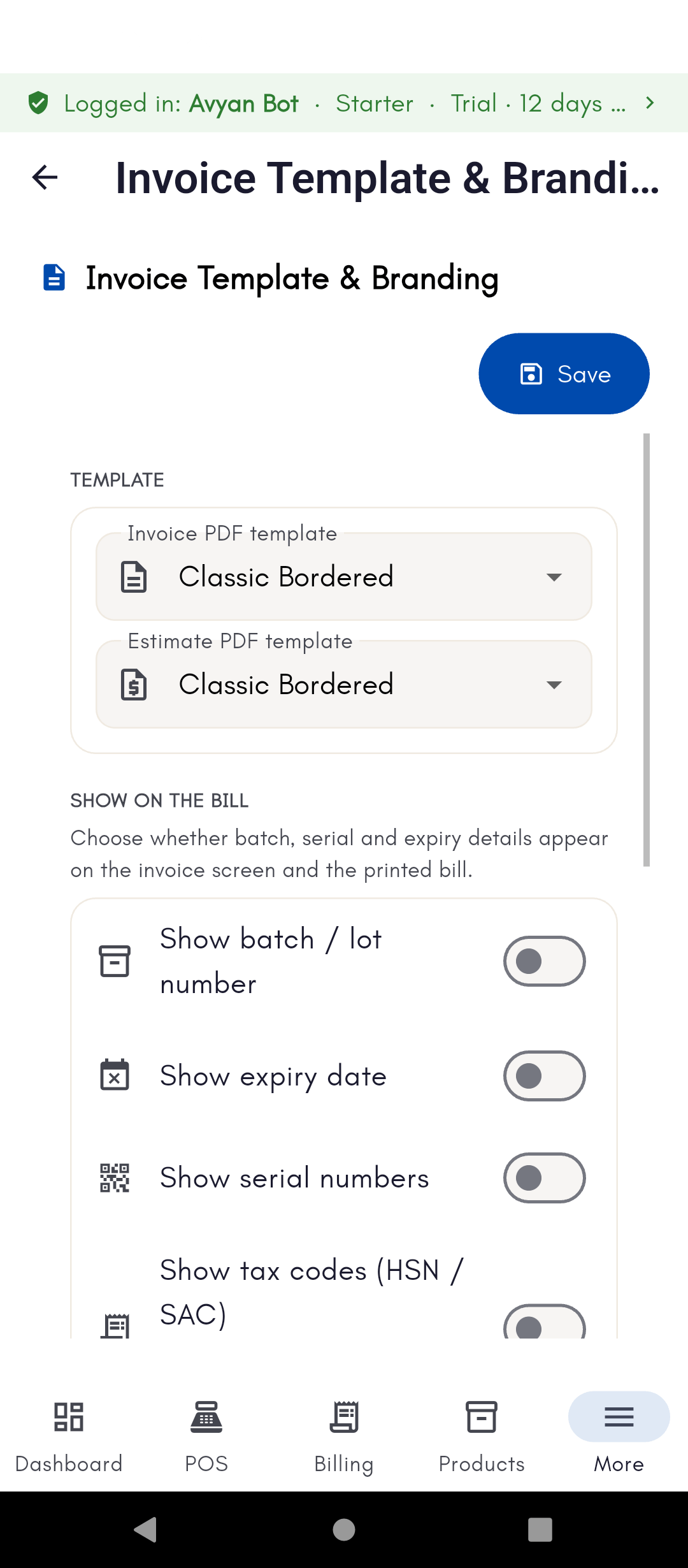
Invoice Template & Branding — the invoice and estimate PDF
templates (both set to “Classic Bordered” here), and the Show on the
bill toggles for batch/lot, expiry, serial numbers, and tax codes, all
off by default until a product actually carries that data.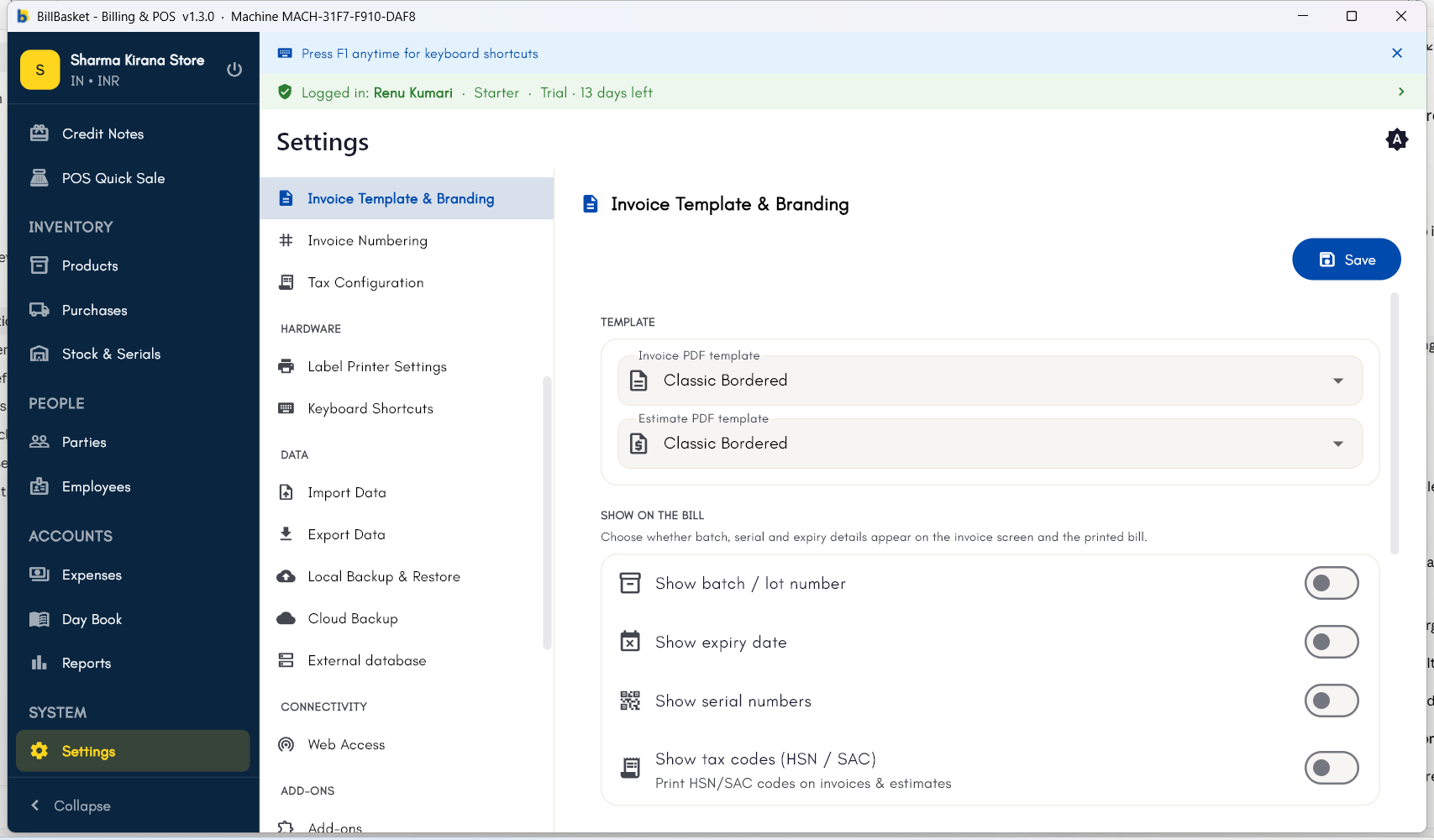
Try it: James Spa
1
Add a signature and bank details
James Fernandes opens Settings → Documents → Invoice Template &
Branding, uploads a photo of his signature, and fills in his bank
account details so clients paying by transfer can see them on the
invoice.
2
Create a separate estimate series
He then opens Settings → Documents → Invoice Numbering and creates a
second series with the prefix
EST- starting at 1, and marks it as the
default series for estimates, so his estimates are numbered separately
from his invoices.