

Understanding the fields
- Print — sends the invoice to whichever printer is connected: a Bluetooth receipt/label printer on phone, or a regular Windows printer on desktop. See Hardware & connectivity settings for how printers are paired/installed.
- Label padding (horizontal/vertical) — if a label is printing off-center on your label stock, this is adjusted from printer settings, not from the invoice screen itself — it’s a one-time setup per printer, not something you change per bill.
- Save as PDF — generates a PDF copy on the device, independent of whether a printer is even connected.
- Share channel — WhatsApp, e-mail, or SMS. Only the channels turned on in Settings → Notifications appear here, and whichever one is marked default is offered first — see Notifications settings. “Copy to clipboard” is always available regardless of what’s turned on, as a fallback for any other app.
See it on your device
- Windows PC
- Phone
- Tablet
Tapping Save & Print on a finished invoice opens this A4 Invoice
Preview — your store’s name, address, and GSTIN on the left, invoice
number, date, and a scannable QR code on the right, then the customer
and line items below. The printer and share icons in the top-right
corner send this exact layout to your printer or generate a shareable
copy.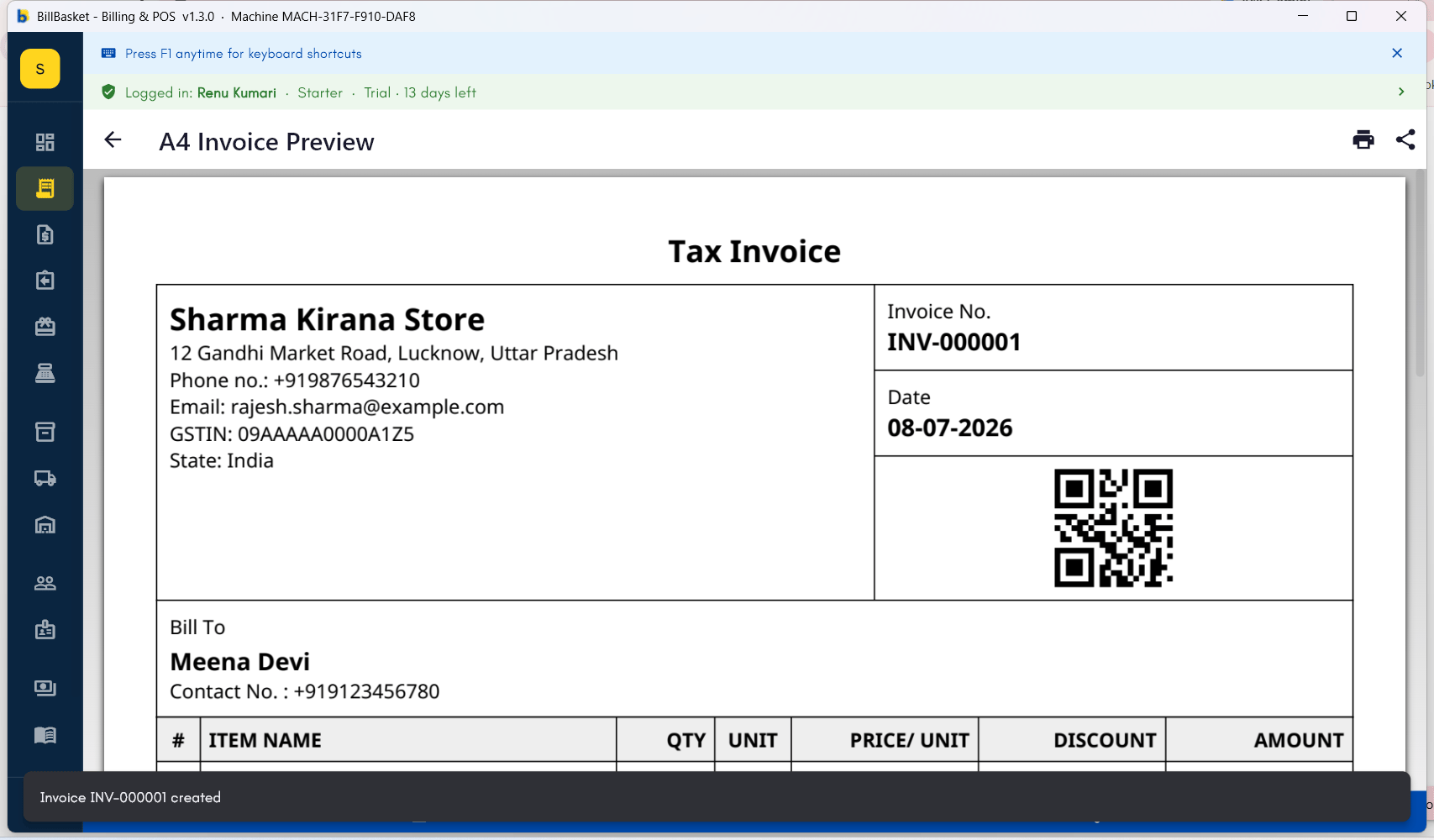
1
Print to a connected receipt or label printer
From the finished invoice, tap Print — it goes straight to whichever
printer is paired/installed.
2
Save as PDF
Tap Save as PDF to keep a copy on the device, whether or not a
printer is connected.
3
Share with the customer
Tap Share and pick a channel — whichever is set as default is offered
first, or pick another enabled channel instead.
4
Reprint or re-share a past invoice
Open any past invoice from the invoice list and print or share it
again — you don’t need to recreate the bill.
If labels are printing off-center, adjust horizontal/vertical padding
under printer settings rather than on the invoice screen — see
Hardware & connectivity settings.