

There’s no logo upload on this screen today — despite older guidance
mentioning one, the current Business Profile form covers business details
and bank details only. If a logo option is added later, this page will be
updated.
Understanding the fields
- Business name — required. Prints as the main heading on every invoice, estimate, and receipt.
- Address — your shop’s address, shown under the business name on printed documents. Supports two lines.
- Phone — your shop’s contact number, shown on invoices so customers can reach you about an order.
- Email — optional contact email, also shown on invoices.
- Tax ID / GSTIN — your business’s tax registration number (GSTIN in India, or the equivalent for your country). Printed on invoices so they’re valid for your customers’ own tax records.
- Bank name / Account number / IFSC / routing / Account holder name — a separate “Bank details” section shown on invoices for customers paying by bank transfer. All four fields are optional, but for the bank block to be useful on the printed invoice, fill in all of them together — a partially filled set (for example, an account number with no IFSC) isn’t enough for most customers to actually complete a transfer.
See it on your device
- Windows PC
- Phone
- Tablet
Settings → General → Business Profile showing Sharma Kirana Store’s
saved details — address, phone, email, country, Tax ID, currency, and
legacy invoice prefix — with an Edit button to update them.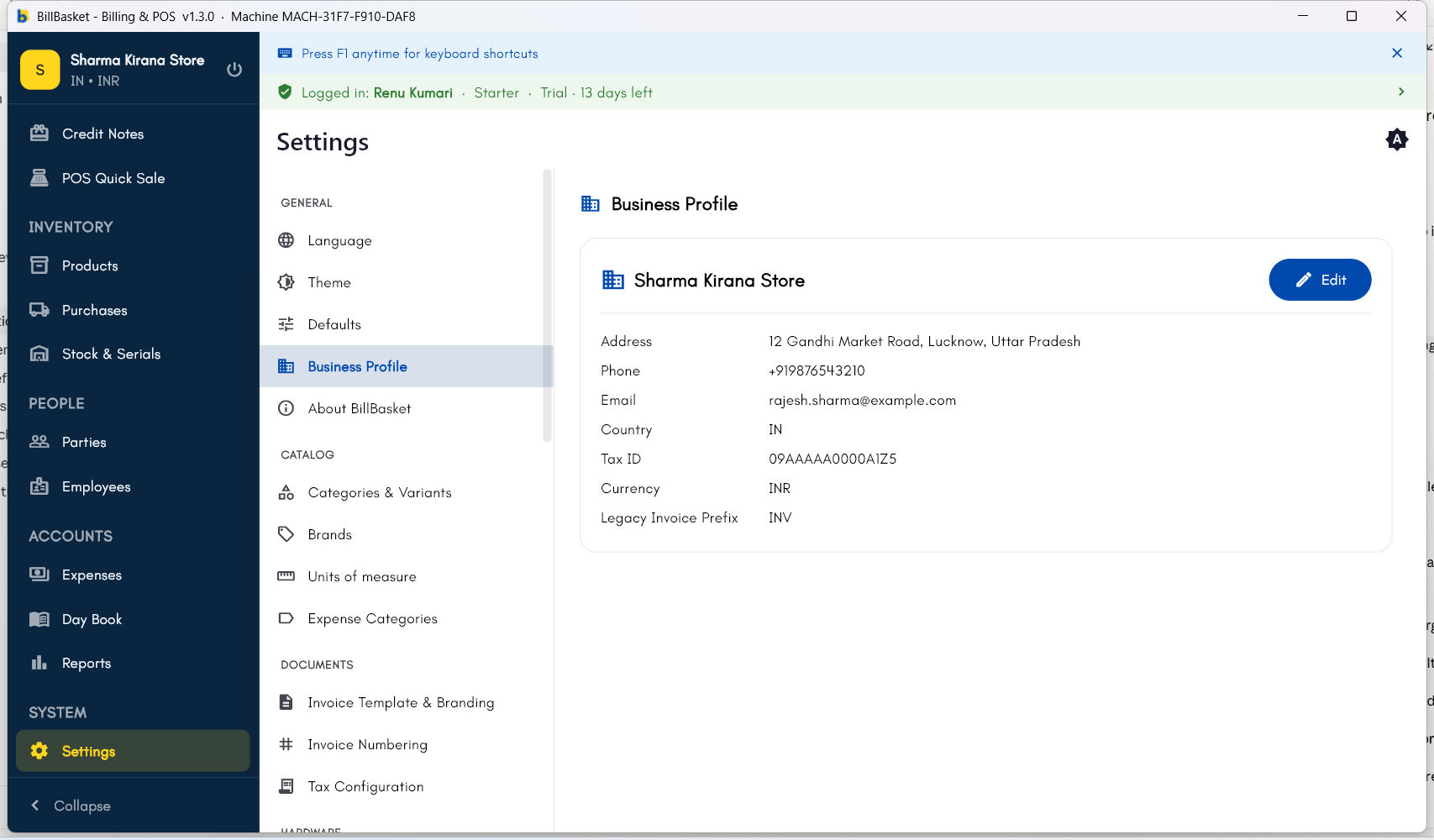
Try it: Sharma Kirana Store
1
Open Business Profile
Rajesh Sharma goes to Settings → General → Business Profile to
update his shop’s details before printing a fresh batch of invoices.
2
Update the business name and address
He confirms the business name reads “Sharma Kirana Store” and updates
the address to his new shop location on the main market road.
3
Add the tax ID and phone
He enters his GSTIN and the shop’s contact phone number so both appear
on every printed invoice and receipt.
4
Fill in bank details for transfers
Since some customers pay by bank transfer, Rajesh fills in the bank
name, account number, IFSC, and account holder name together, then taps
Save changes. The next invoice he prints for Meena Devi shows the
updated name, address, and bank details.