

POS Quick Sale is for speed at the counter. When you need the full detail
of an invoice (a specific customer, per-line discounts, terms), use
Creating an invoice
instead — both produce a real invoice.
Understanding the fields
- Product grid — tap a product to add it to the running cart; tap again to increase quantity. This replaces searching and typing for the items you sell most.
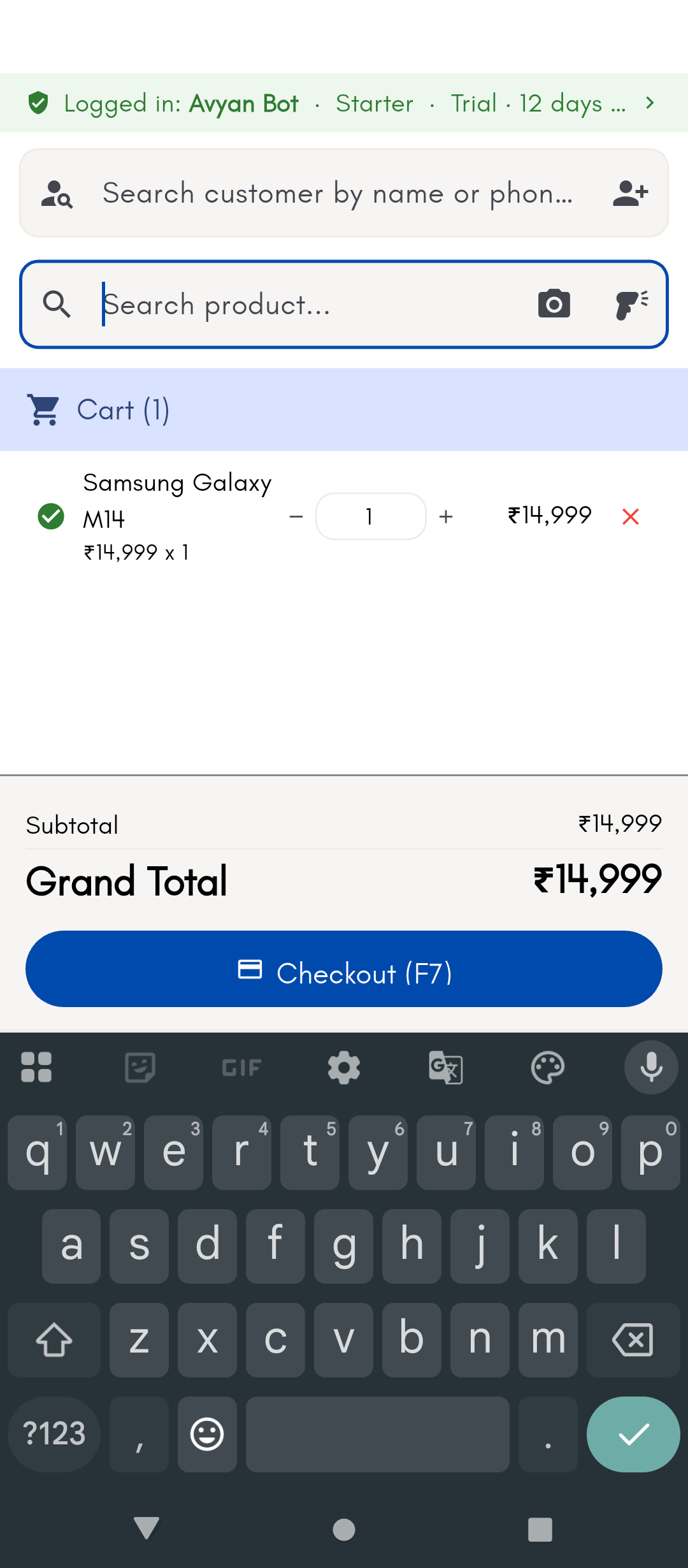
- Cart — the list of what’s being sold, with a live running total. For a serial-tracked product, POS still asks you to pick the serial before checkout — a sale can’t be completed while a serialised line is missing its serial number. See Tracking serial numbers.
- Hold — parks the current cart (with an optional note) so you can start a fresh sale for the next customer, then come back and resume the held one. Useful when a customer steps away to fetch one more item and you don’t want to hold up the queue.
- Checkout — opens the payment screen to take Cash, Card, UPI, or a split across methods, then saves the invoice. Payment works exactly like a normal bill — see Taking payment.
See it on your device
- Windows PC
- Phone
- Tablet
The product grid on the left with keyboard shortcuts shown above it
(F6–F9), and the cart on the right with one item tapped in, its
quantity, and the running Grand Total — Checkout (F7) is ready to
take payment.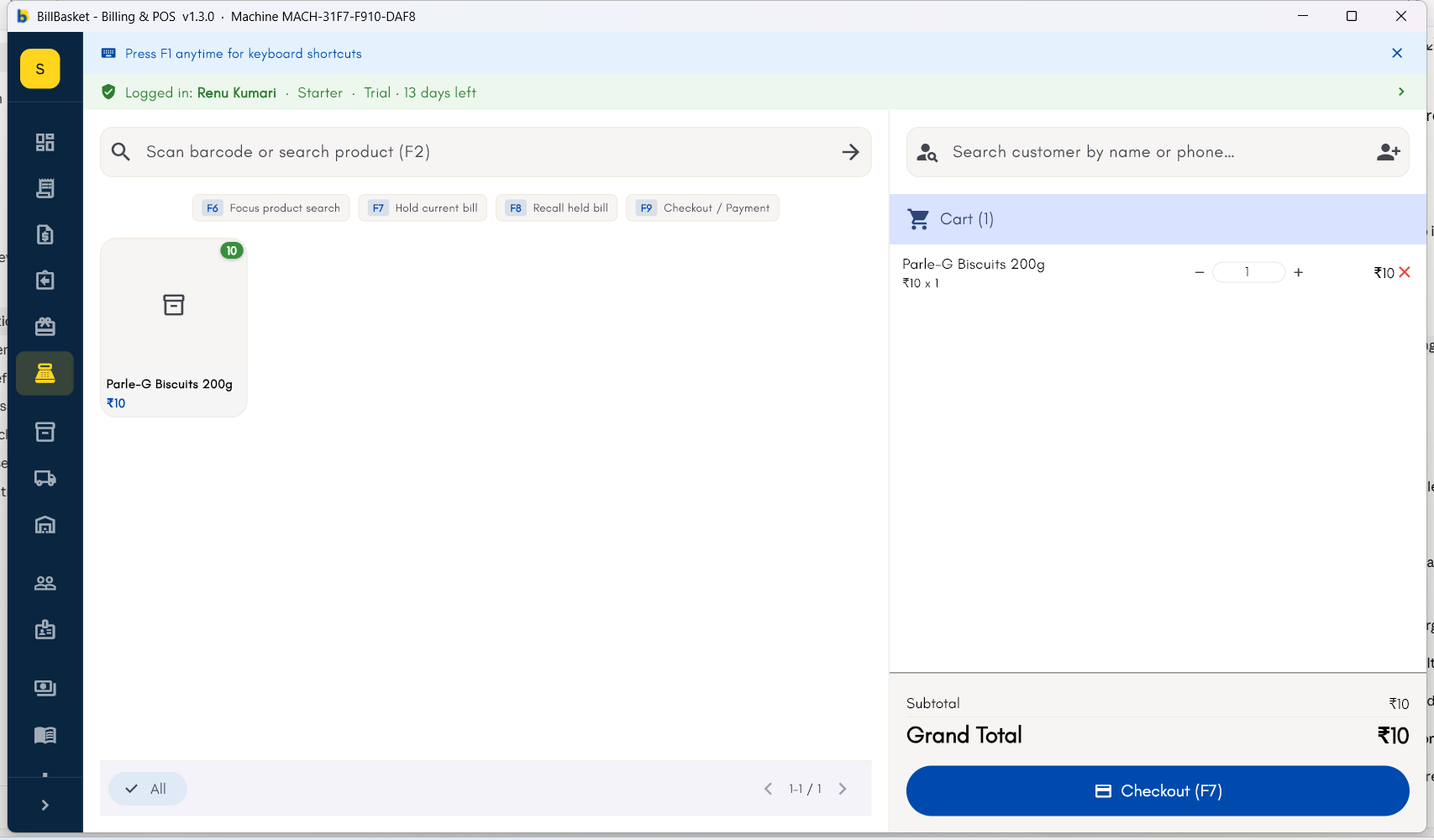
Try it: Sharma Kirana Store
1
Open POS Quick Sale
During the evening rush, Suresh opens POS Quick Sale to keep the
queue moving.
2
Tap products to build the cart
He taps Parle-G, Tata Salt, and Amul Milk from the grid — each tap adds
the item and the total updates live.
3
Hold a bill when a customer steps away
One customer runs back for a second item, so Suresh taps Hold with a
quick note and serves the next person, then resumes the held bill when
they return.
4
Check out
He taps Checkout, takes cash, and the invoice is saved — stock and
the day’s sales update just like any other bill.