

This works over your shop’s local Wi-Fi network — it isn’t internet-based.
Both devices must be on the same network, so a phone taken off-site won’t
reach the counter machine until it’s back on the shop Wi-Fi.
Understanding the fields
On the Windows host — Settings → Web Access
- Enable Web Access (toggle) — starts the local server on the desktop so phones can connect. Nothing can pair until this is on.
- Port — the network port the server listens on; the default is fine for almost everyone.
- This device’s addresses — the list of the PC’s Wi-Fi addresses, shown so you (or the phone) know where to connect.
- Pairing QR + 6-digit code — a phone scans the QR (or types the rotating code) to request pairing. The code rotates for security.
- Approve / deny prompt — when a phone tries to pair, the desktop pops a request to approve — protected by your Admin PIN if one is set, so a stranger can’t pair a device without you.
- Paired devices — the list of phones currently paired, where you can revoke a device (cut it off) or turn on Require PIN for it. Revoke is how you remove a lost or replaced phone.
On the phone — companion mode
- Pair to a host — the phone scans the host’s QR (or enters the code) to join. Pairing is a one-time step; once approved, the phone remembers the connection for future shifts.
- What a companion can do — a paired phone bills against the host’s live data. A phone signed in with a view-only role can browse but not check out at POS, so you can hand a floor phone to junior staff safely.
See it on your device
- Windows PC
- Phone
- Tablet
Settings → Web Access before pairing anything — the server is off
(“No data is exposed to the network”), with the Port and Token validity
fields at their defaults, and a Network adapter picker below
listing every network interface this PC has (Wi-Fi, Tailscale, virtual
adapters) so you can choose which one the pairing QR/link should use.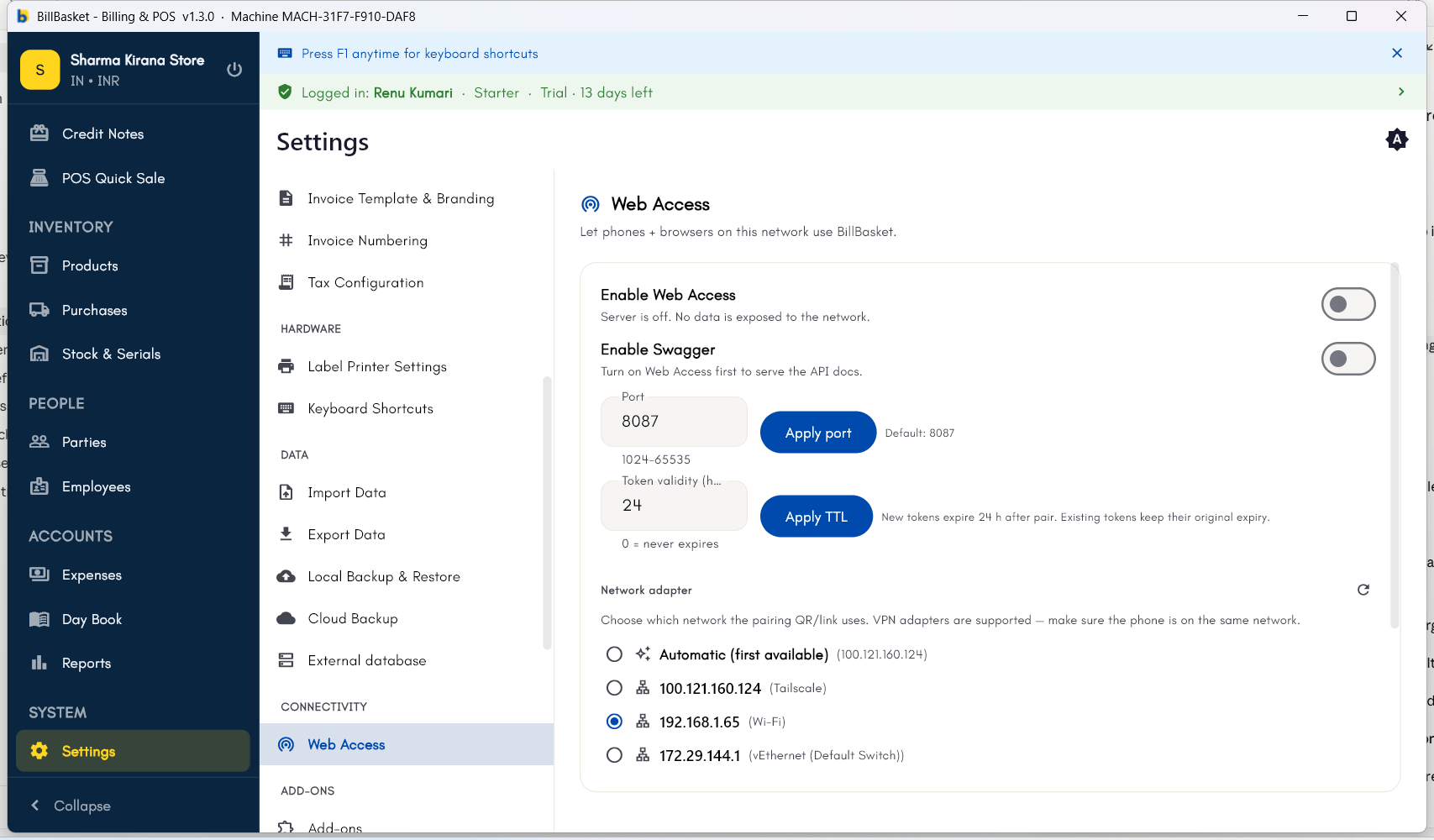
Try it: Sharma Kirana Store
1
Turn on Web Access on the counter PC
Rajesh Sharma runs BillBasket on the Windows PC at the counter — the
host that holds the store’s data. He opens Settings → Web Access and
turns it on, and a pairing QR appears.
2
Pair a phone over Wi-Fi
Suresh opens BillBasket on his Android phone (on the shop Wi-Fi) and
scans the QR. Rajesh approves the request on the counter PC, and the
phone is paired.
3
Bill a customer from the phone
During a busy hour, Suresh bills Meena Devi’s purchase directly from his
phone while walking the aisles, instead of making her wait at the
counter.
4
See it on the counter instantly, and revoke when needed
The invoice appears on Rajesh’s counter PC right away over the local
network. When Suresh’s phone is later replaced, Rajesh revokes it
from the paired-devices list in one tap.