

Discounts
- Per line item — a flat amount off a single product/service line.
- Bill-level — a flat amount or a percentage off the whole invoice total, whichever you choose.
Tax
Tax is calculated automatically based on the tax rate set on each product or service — there’s no separate customer-level tax override that changes the rate (a customer’s saved tax branch only affects which tax number prints on the invoice, not the rate — see Per-customer tax branches). You can still change the tax slab applied to a specific invoice line for a one-off exception.Understanding the fields
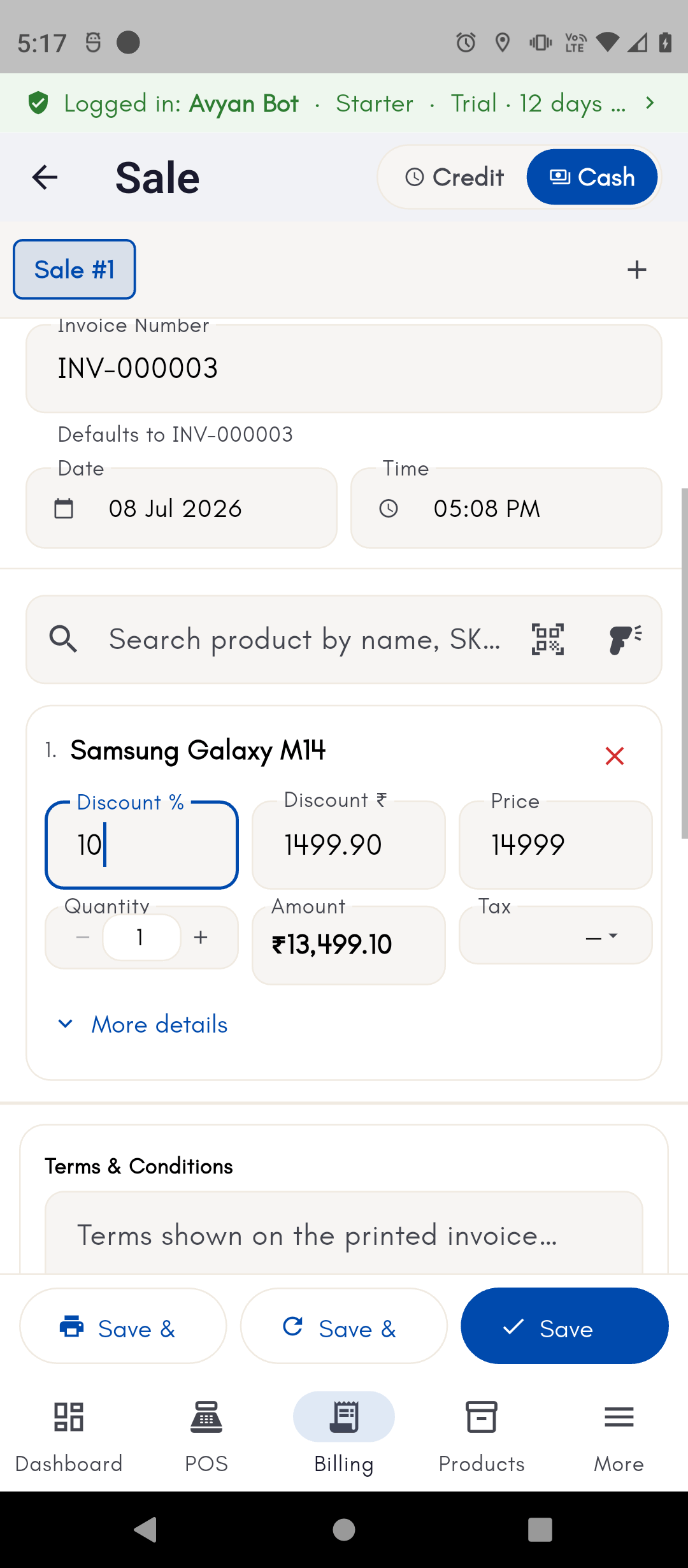
- Line discount — a flat rupee amount taken off one line. The billing screen also offers a percent-based entry as a convenience, but it’s converted to a flat amount before being saved — so a line discount is always a fixed amount once you move to the next line, not a live percentage that changes if you edit the price afterward.
- Bill discount amount and Bill discount type (flat or percentage) — unlike the line discount, the bill-level discount keeps both the percent and the flat-amount view live and in sync with each other while you’re editing it, so you can switch between typing a percent or a rupee amount and see the other update automatically.
- Calculation order — line discounts reduce each line’s total first, which is what “subtotal” is based on. Tax is calculated per line and added on top of that subtotal. The bill-level discount is then subtracted last — and importantly, a percentage bill discount is calculated against the pre-tax subtotal, not against the tax-inclusive total, and it does not reduce the tax amount itself.
- Tax classification code (HSN/SAC) — only shown for stores in countries where it’s required (for example, India); it doesn’t appear at all for stores in regions where it isn’t a tax requirement.
Tax field names and requirements (like HSN/SAC) follow the tax rules for
your country/region and only appear where relevant.
See it on your device
- Windows PC
- Phone
- Tablet
A line-item discount (5%, shown as ₹0.50 off in the DISCOUNT column) and
a bill-level discount (2%) applied on the same invoice — the Subtotal
on the right already reflects the line discount, and the bill discount
field underneath shows both the percentage and its computed effect.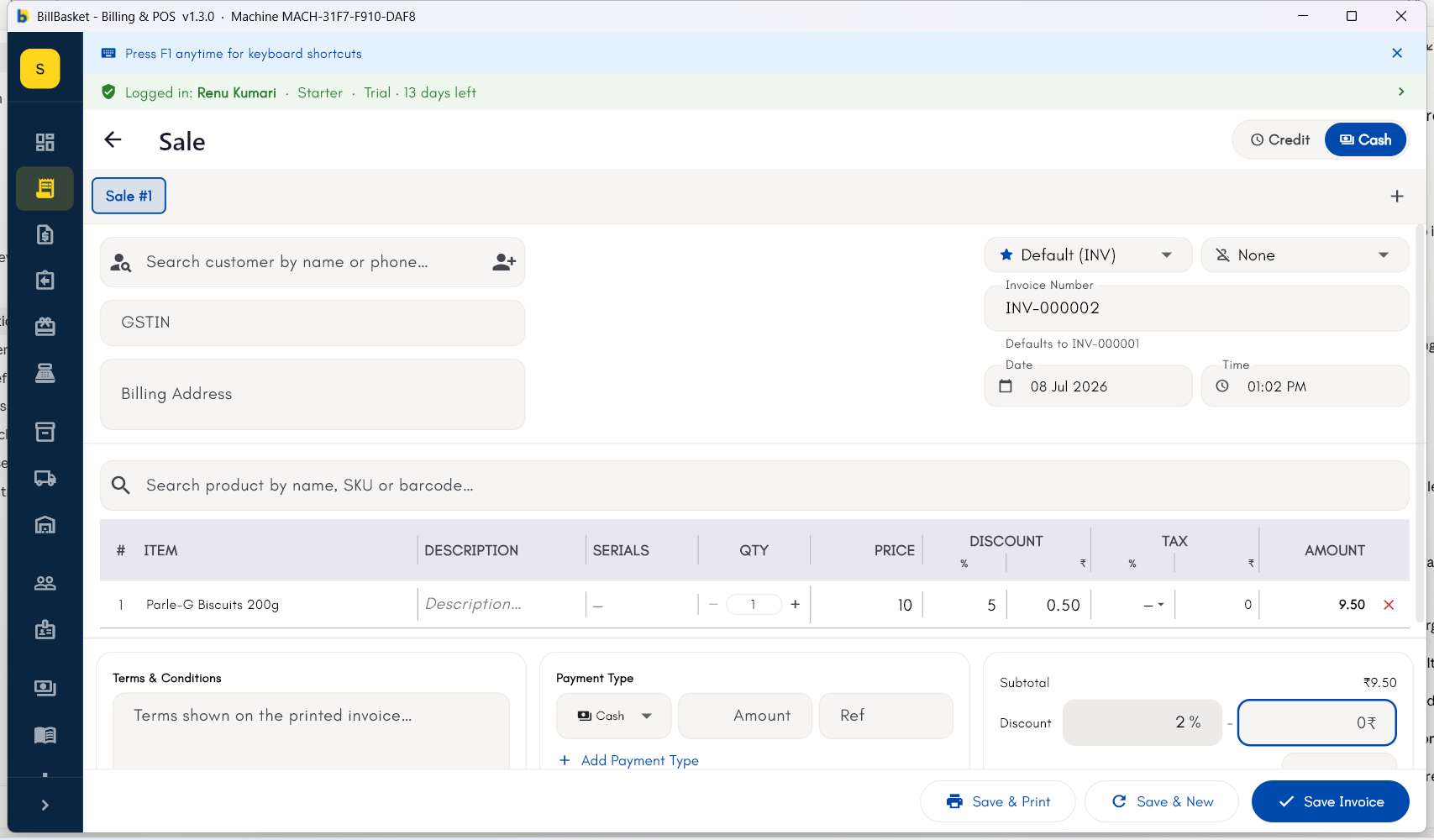
1
Apply a discount to one line
Tap a line item on the bill and enter a discount for just that
product/service.
2
Apply a discount to the whole bill
Open the bill-level discount field and enter either a flat amount or
a percentage — switching between the two keeps both views in sync, so
you can check the total either way before confirming.
3
Review the tax breakdown
Check the tax shown per line and the total before finishing the sale
— this reflects each product’s own tax rate, not a customer-level
override.
4
Adjust a line's tax slab for a one-off exception
If a specific sale needs different tax treatment, change the tax slab
on that invoice line only — this doesn’t change the product’s own
saved tax rate for future sales.