

Understanding the fields
These are the two fields on the Settings screen itself. There’s no
separate font-size or text-scale setting inside BillBasket — the app
follows your device’s own text-size setting instead (see below).
- Language — Tap this row to open a list of every language BillBasket supports: English plus 15+ Indian languages (Hindi, Bengali, Marathi, Telugu, Tamil, Gujarati, Kannada, Odia, Malayalam, Punjabi, Assamese, Nepali, Mizo) and a few others (Spanish, French, Arabic). Pick one and every menu, button, and label across the app switches immediately. The row’s subtitle always shows your current choice, so you can tell at a glance what’s active without opening the list.
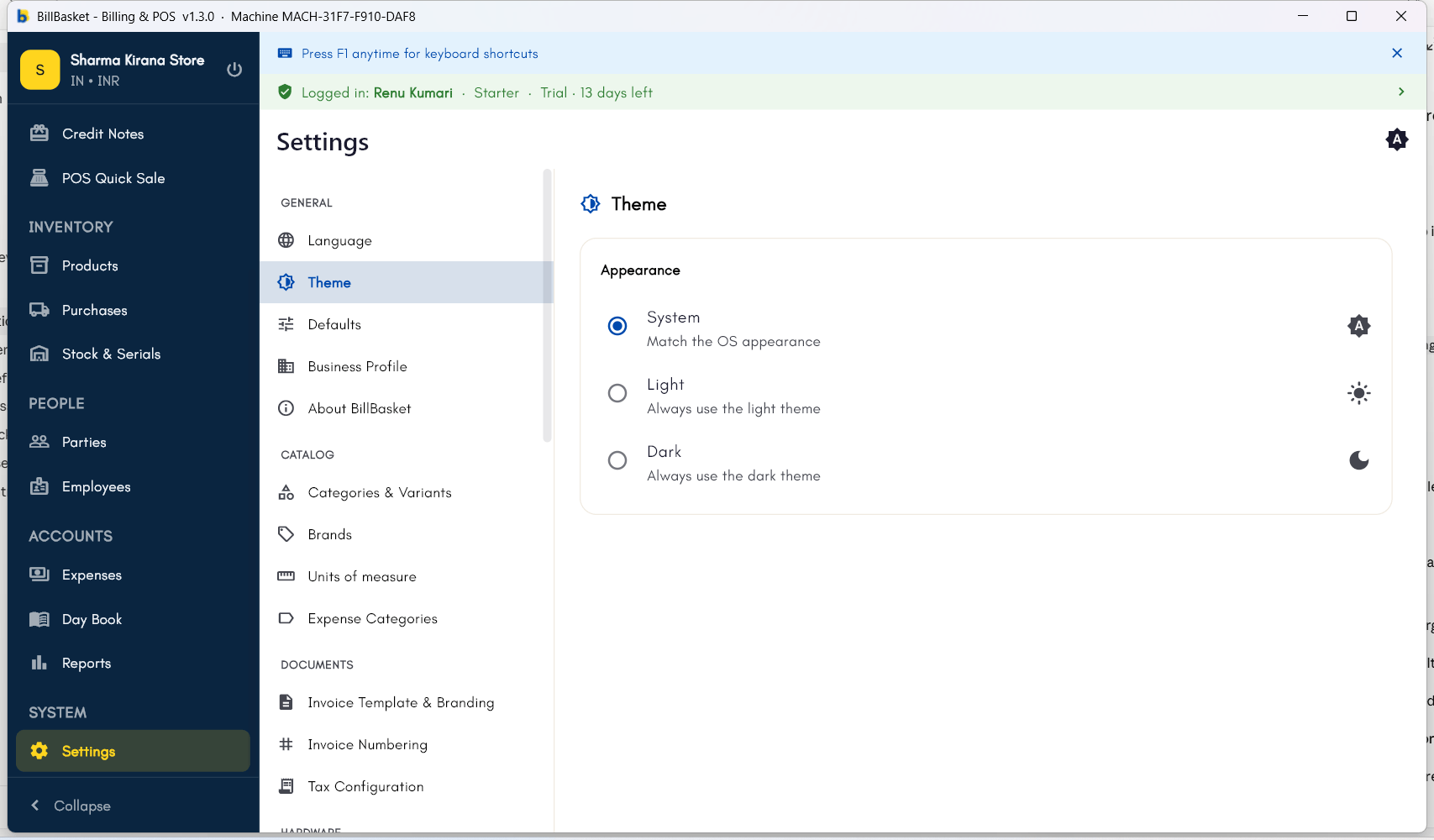
- Theme — Tap this row to choose System, Light, or Dark. System follows your device’s own light/dark setting and switches automatically if that changes (for example, at sunset on a phone with auto dark mode). Light and Dark lock BillBasket to that appearance regardless of what your device is set to. On phone and tablet, there’s also a quick icon in the top-right corner of Settings that cycles System → Light → Dark → System in one tap, as a shortcut to the same setting.
Text size isn’t a BillBasket setting — it follows the font-size setting
in your phone’s or PC’s own system settings. If everything in BillBasket
looks too small or too large, change the text size for your whole device
and BillBasket will follow (within reasonable limits, so layouts don’t
break).
See it on your device
- Windows PC
- Phone
- Tablet
The Language row’s own settings page — every supported language
listed with its native name, English currently selected. Each row’s
subtitle on the main Settings menu always shows the active choice.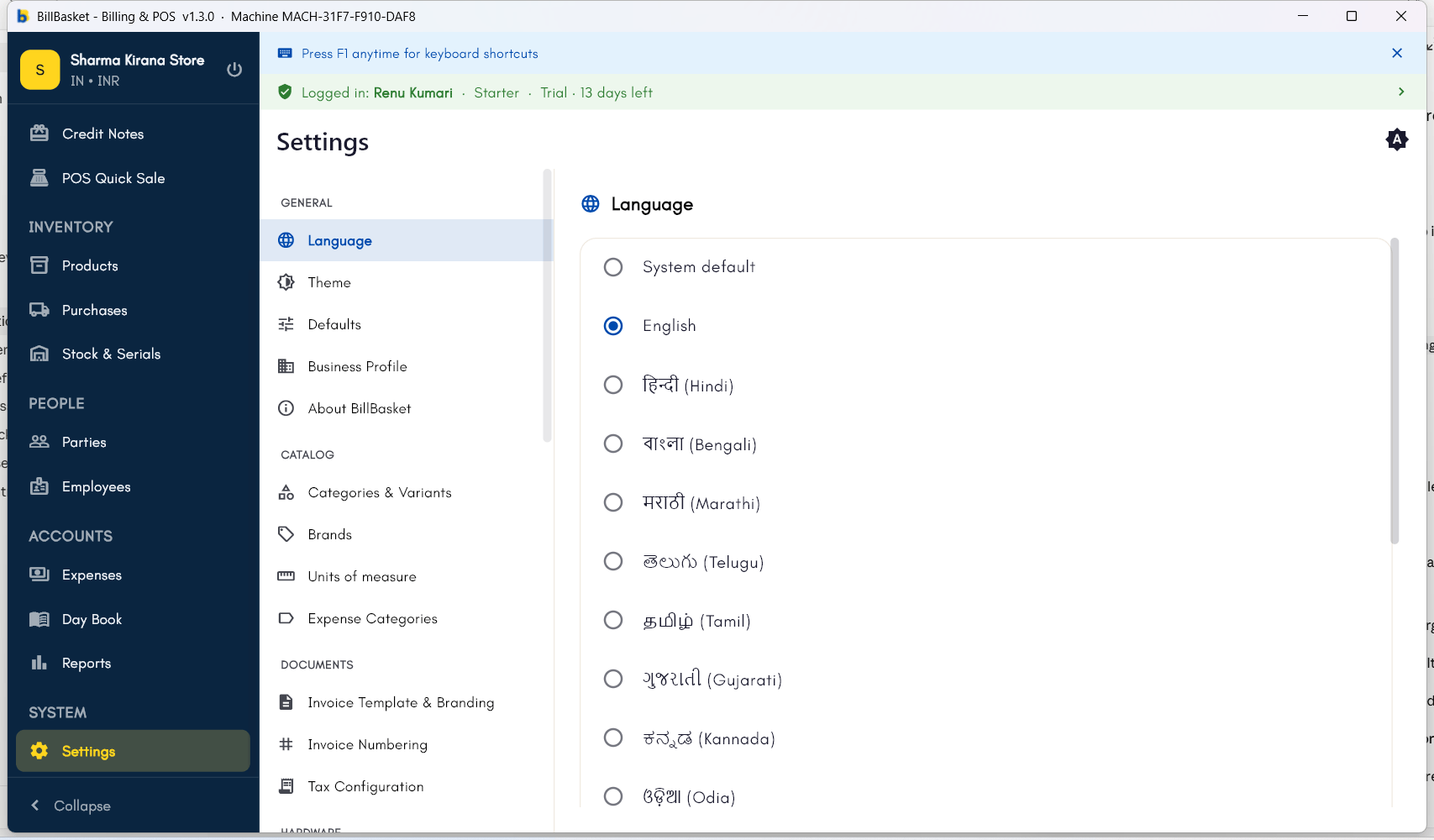
Try it: Sharma Kirana Store
1
Open Settings → Language
Suresh, who handles billing at Sharma Kirana Store, is more
comfortable reading Hindi than English. Rajesh Sharma opens Settings
and taps the Language row.
2
Pick a language from the list
Rajesh selects Hindi from the list of 15+ supported Indian languages
(plus English and a few others). The list closes and the change applies
right away.
3
Confirm the app switched
BillBasket applies the change across the whole app immediately — menus,
buttons, and labels now show in Hindi for Suresh to use comfortably. The
Language row’s subtitle also updates to show “Hindi” as the current
choice.
4
(Optional) Switch the theme too
If the shop’s PC is hard to read in a bright window, Rajesh taps the
Theme row in Settings and picks Dark instead of System. He
can switch back to System any time so BillBasket follows the
device’s own light/dark setting again.