

Understanding the fields
- Back up now — runs a manual, one-off backup immediately, regardless of the schedule setting below.
- Schedule frequency — Off, Daily, or Weekly. This controls whether BillBasket also takes a backup automatically in the background; it’s independent of “Back up now,” so turning scheduling off doesn’t stop you from backing up manually whenever you want.
- Backup list / timestamp — each completed backup is listed with when it ran, so you can confirm the most recent one actually succeeded before you rely on it.
See it on your device
- Windows PC
- Phone
- Tablet
Local Backup & Restore with a scheduled backup already configured
(Daily, kept for 7 days) and a Back up now button for a manual
run — the Last backup timestamp confirms the most recent one
actually completed.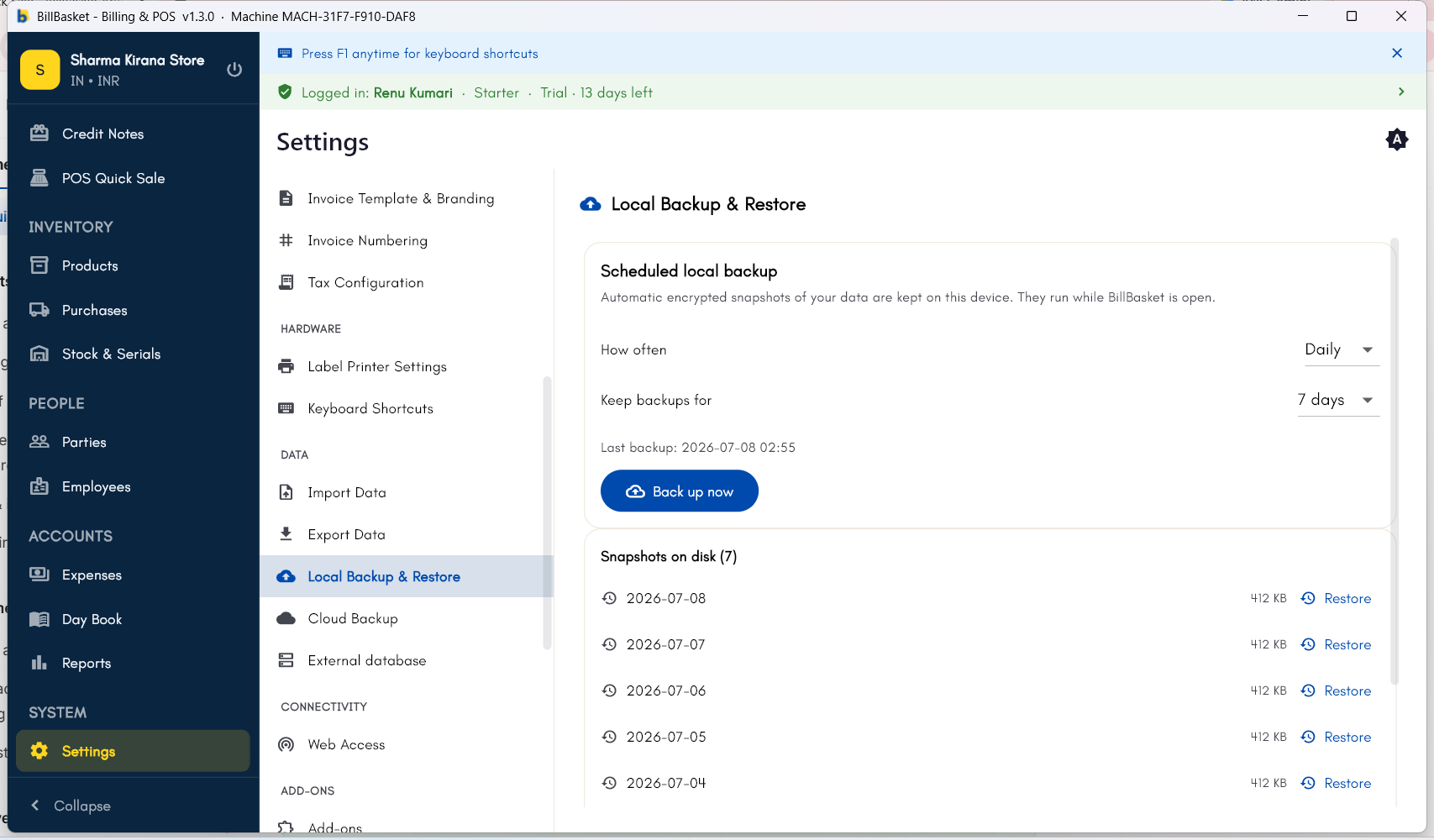
Try it: Sharma Kirana Store
1
Open Backup & Restore
Before the busy festival season, Rajesh Sharma opens Settings →
Backup & Restore on his Windows counter PC to make sure his data is
safe.
2
Run a manual backup
He taps Back up now. BillBasket encrypts the store’s data —
products, parties like Meena Devi, invoices, and more — and saves it,
tied to his BillBasket account and store.
3
Verify the backup completed
Rajesh checks the backup list and sees a new entry timestamped just
now, confirming it finished successfully.
4
Turn on scheduled backups
He sets the schedule to Daily so BillBasket keeps backing up
automatically going forward, without him needing to remember.