

Understanding the fields
- Date — the Day Book always shows one day at a time. Use the calendar button to move to any past date; the header shows that day’s total sales and invoice count at a glance.
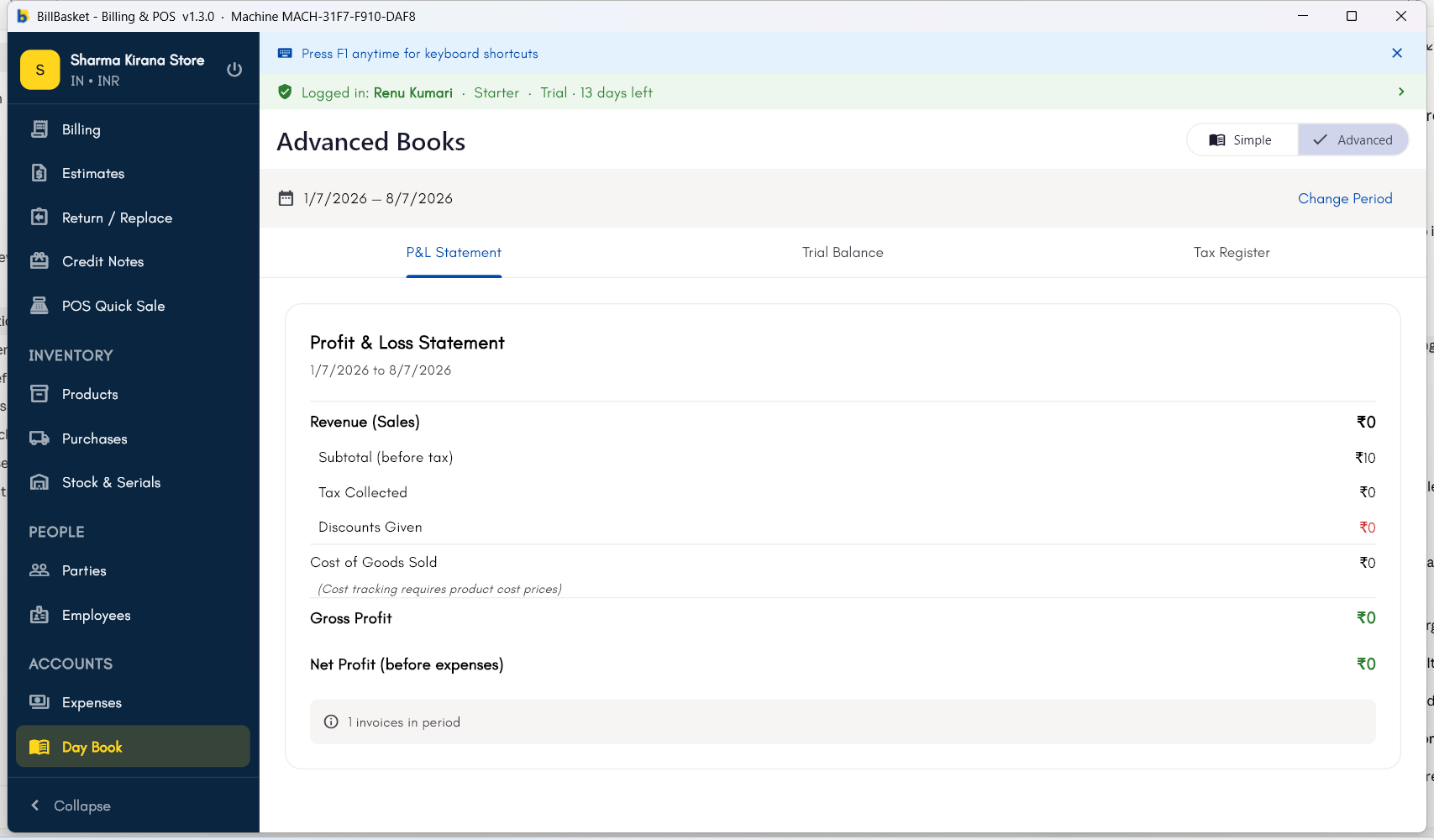
- Simple / Advanced toggle — Simple (the default) is the plain day-at-a-glance register described below. Advanced switches to an analytics view for deeper breakdowns; most shop owners stay on Simple.
- Day Book tab — every transaction for the day, sales and payments together, in one running list.
- Sales Register tab — just the invoices raised that day, for checking the day’s billing on its own.
- Cash Book tab — just the payments/cash movements for the day, for tallying the drawer against what the system recorded.
See it on your device
- Windows PC
- Phone
- Tablet
The Simple Day Book for today — the header shows the date and a
running Sales/Invoices count, with the Day Book / Sales Register / Cash
Book tabs underneath and today’s one invoice listed.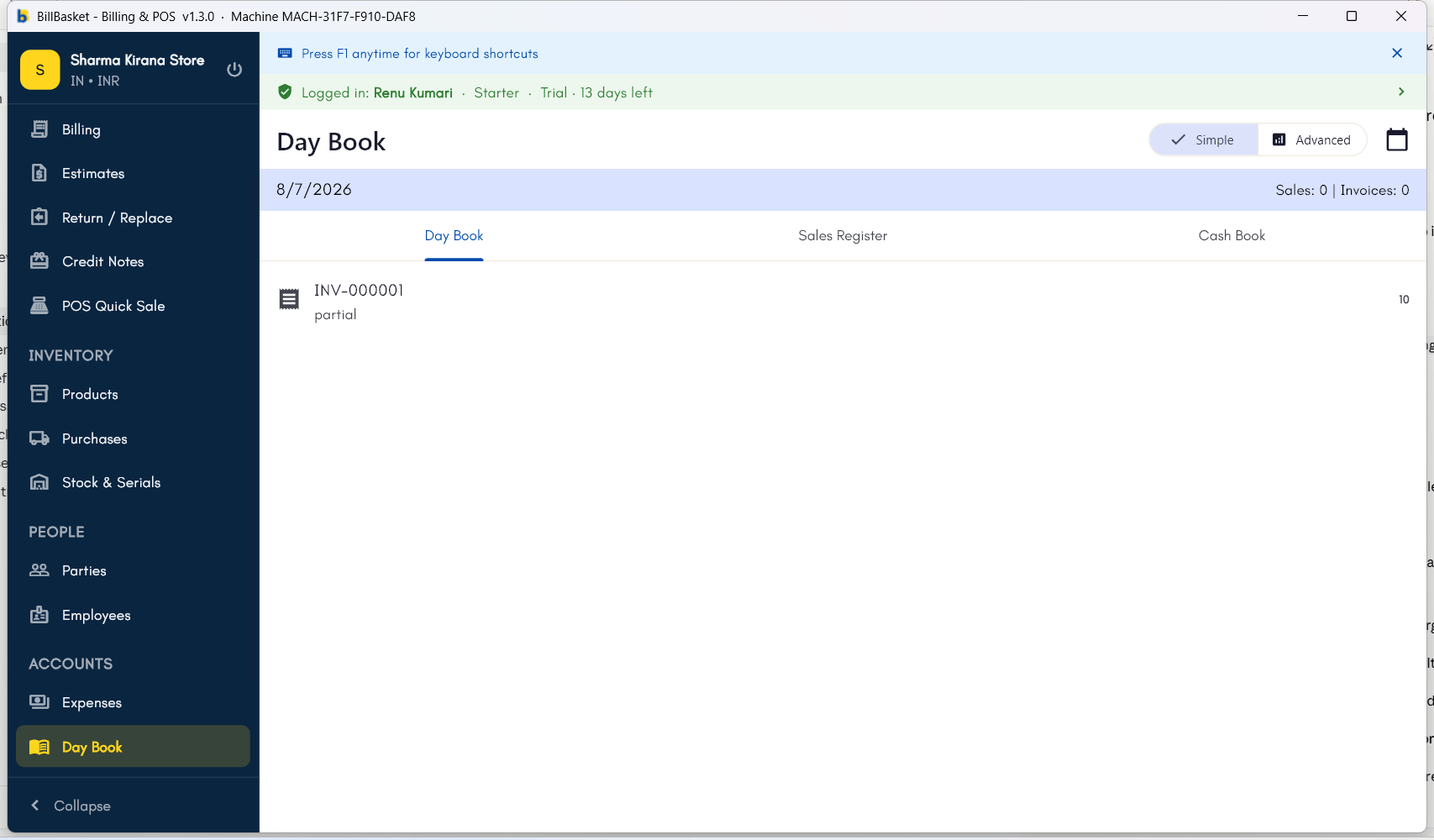
Try it: Sharma Kirana Store
1
Open the Day Book at closing time
At the end of the day, Rajesh Sharma opens Day Book — today’s date is
already selected, and the header shows the day’s total sales and how many
invoices were raised.
2
Check the day's bills
He switches to the Sales Register tab to scan the list of invoices
raised today and confirm nothing looks off.
3
Tally the cash drawer
On the Cash Book tab, Rajesh matches the payments BillBasket recorded
against the notes in the drawer before locking up.
4
Look back at an earlier day
To settle a query about last Tuesday, he taps the calendar button and
picks that date — all three tabs jump to that day’s transactions.