

Understanding the fields
Waitlist
When a slot is full, the booking form offers Join waiting list instead of booking. A waitlist entry records the customer, the service, and the desired time. From the Waitlist screen you can then:- Book (promote) — turn a waiting entry into a real appointment when a space opens. BillBasket re-checks capacity at that moment, so it won’t let you promote into a slot that’s since filled again.
- Remove — take someone off the list (they found another time, etc.).
Cancellation policy
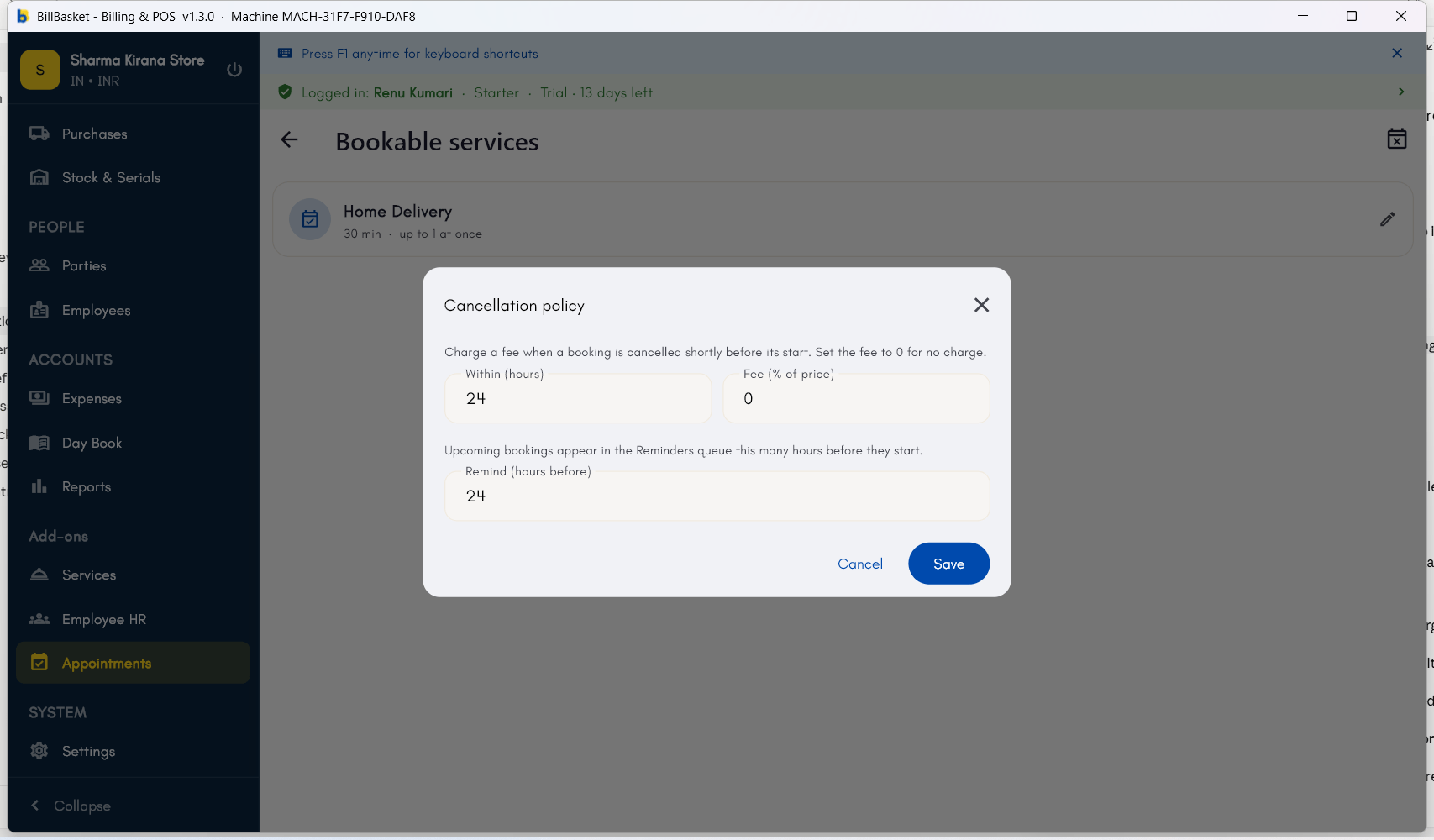
Set once for the business, from the Bookable services screen’s policy editor:- Cancellation window (hours) — how far ahead a customer must cancel to avoid a fee. A cancellation inside this window counts as late.
- Cancellation fee (%) — the fee for a late cancellation, as a percentage of the booking’s price. The two settings work together: the window decides whether a fee applies, and the percentage decides how much.
See it on your device
- Windows PC
- Phone
- Tablet
The Waiting list panel — empty here, but this is exactly where a
customer lands when a slot is full, ready to be promoted (Book) or
removed once you check back.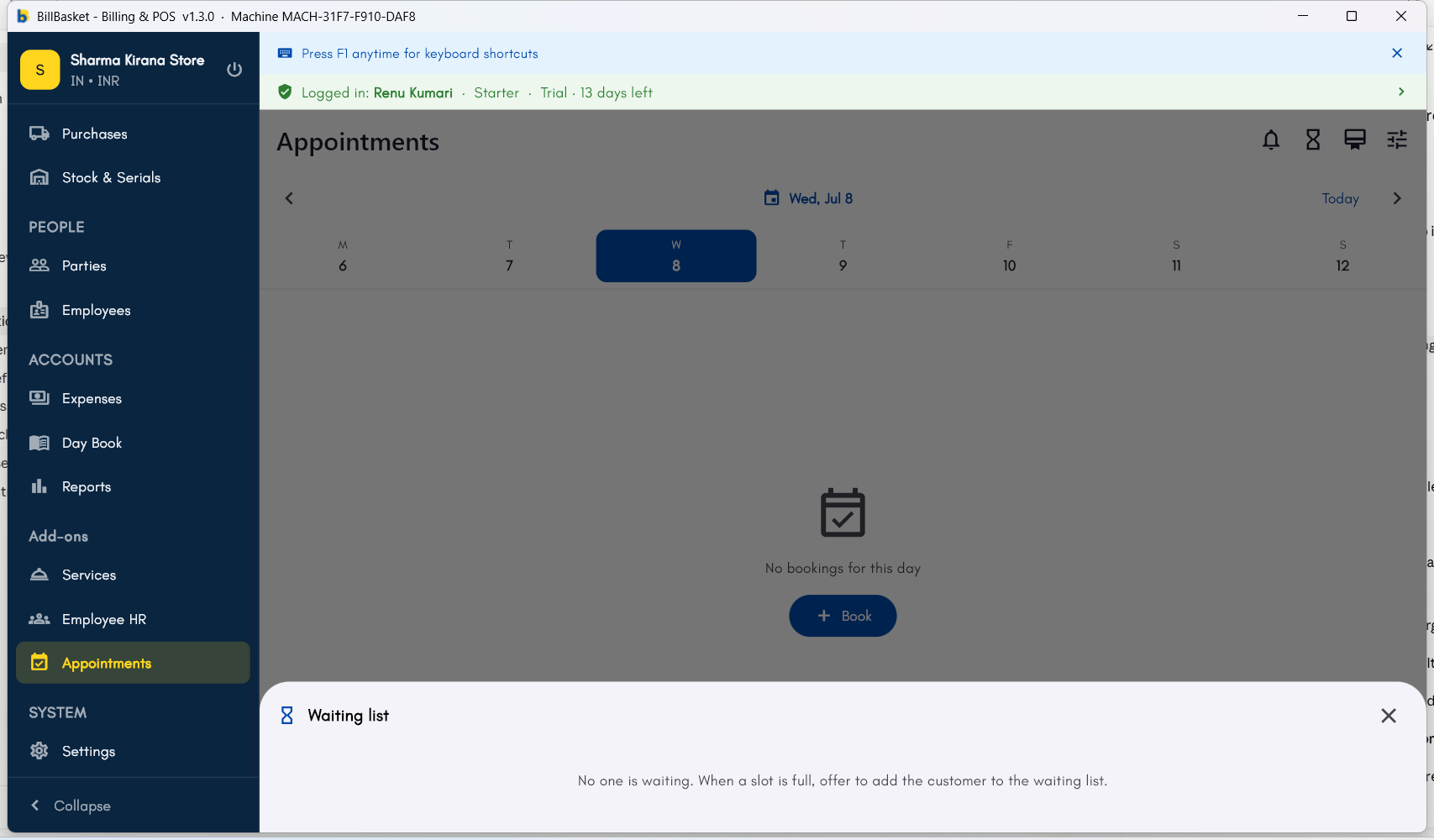
Try it: James Spa
1
Add a customer to the waitlist
A client wants 5:00 PM but both massage rooms are booked. James
Fernandes taps Join waiting list on the booking form so the client is
queued for that time.
2
Promote them when a slot frees
An earlier client cancels, so James opens the Waitlist, taps Book
on the waiting client — BillBasket re-checks the room is genuinely free
and turns the entry into a real appointment.
3
Set a cancellation policy
To cut down on last-minute drop-offs, James opens the policy editor and
sets a 24-hour window with a 50% fee.
4
A late cancellation applies the fee
When a client cancels two hours before their slot — inside the window —
BillBasket shows the 50% fee for James to confirm and records it on the
booking.