

Reminders and confirmations use the message channels and templates you set
up once under Notifications — the
appointment screens just fill in the customer, service, date, and time.
Understanding the fields
Confirmation on booking
When you book an appointment for a customer who has a phone number or email, the booking sheet offers Send confirmation. It opens the message ready to send (over WhatsApp, SMS, or email), pre-filled with the service, date, time, and provider. Sending it marks the booking as confirmed so you know it went out.The reminders queue
Rather than scheduling phone notifications, BillBasket keeps an in-app reminders queue you clear yourself:- Reminder lead time (hours) — how far ahead of a visit a booking should appear in the queue (default 24 hours). Set it in the same place as the cancellation policy.
- Reminders-due bell — the Appointments home screen shows a bell with a count of bookings coming up within that lead window that haven’t been handled yet.
- Remind / Dismiss — for each due booking you either Remind (open the pre-filled reminder message to send) or Dismiss (mark it handled without sending). Either way it leaves the queue, so the bell only ever shows what still needs attention.
Because reminders are a queue you work through while the app is open (not
scheduled phone alarms), open BillBasket around the start of the day to
clear the bell for that day’s visits.
See it on your device
- Windows PC
- Phone
- Tablet
The Reminders due panel behind the bell icon — clear here, but
this is exactly where upcoming bookings surface within the reminder
lead window, ready to Remind or Dismiss.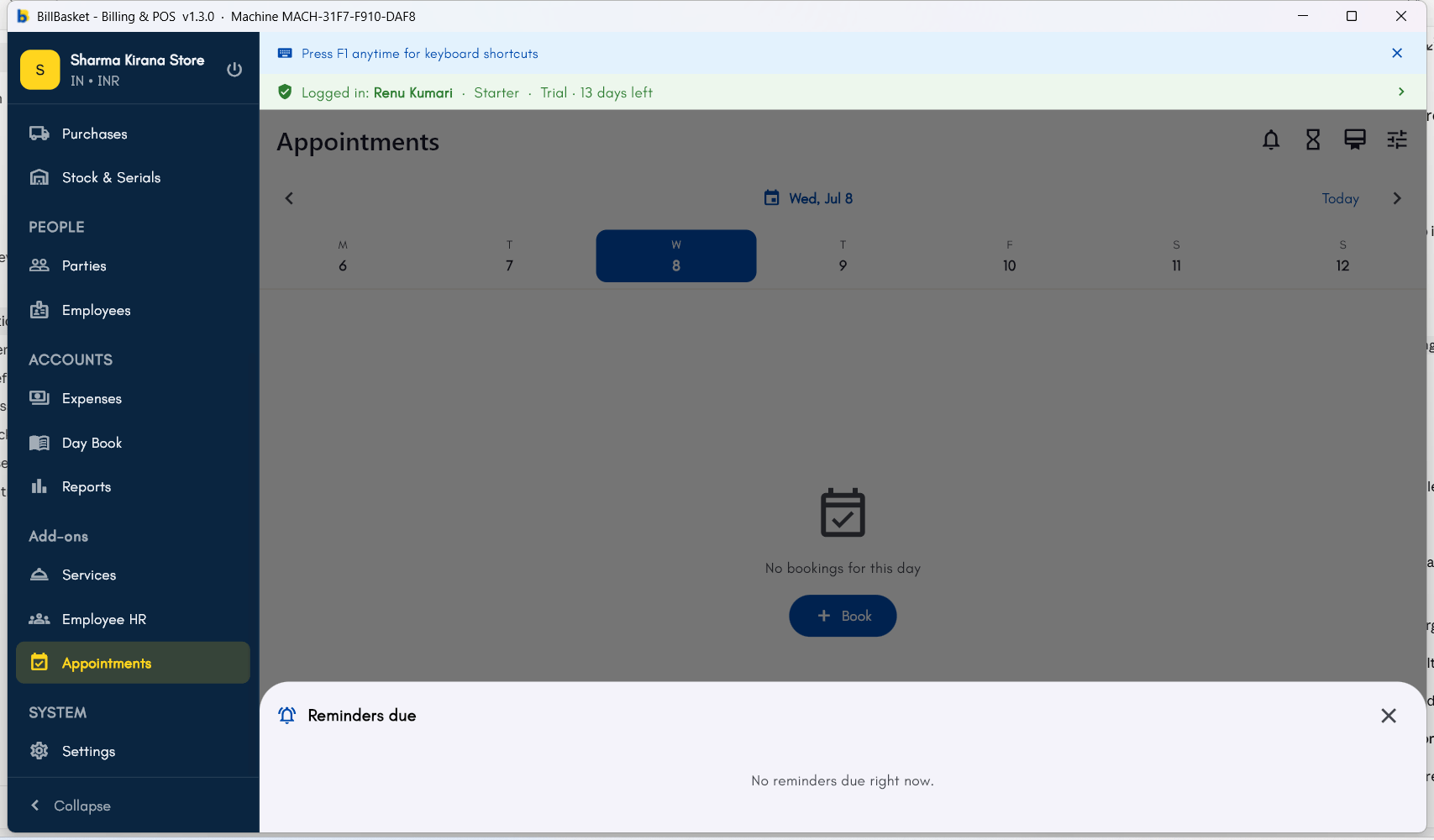
Try it: James Spa
1
Send a confirmation when booking
James Fernandes books a client for tomorrow afternoon and taps Send
confirmation — a WhatsApp message with the service, date, and time is
ready to send, and the booking is marked confirmed.
2
Check the reminders bell each morning
The next morning Priya opens Appointments and sees the reminders bell
showing 3 visits due within the day’s lead window.
3
Work through the queue
She taps Remind on each to send the pre-filled reminder, or
Dismiss for the client she already spoke to — the bell clears as she
goes.