Warehouse is an optional add-on module — turn it on from Settings →
Add-ons (Admin PIN required) if you don’t see it in your menu.
Dispatching from a delivery center
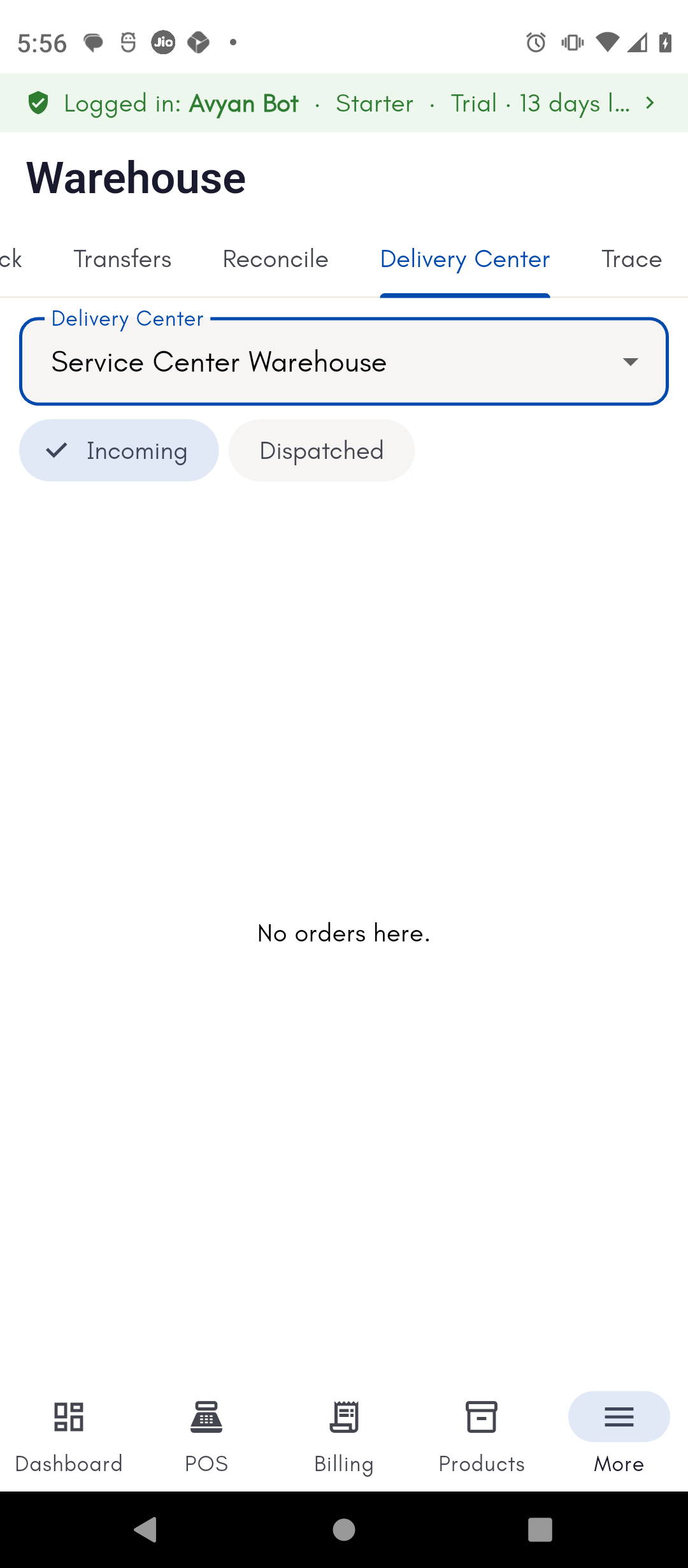
Pick a warehouse to act as your delivery center, and BillBasket shows you the pending orders and invoices waiting to ship from it. Dispatch one by printing a Dispatch Challan — this flips the order’s status to “dispatched.” If you need another copy later, already-dispatched orders can have their challan reprinted on demand.Tracing by serial or batch number
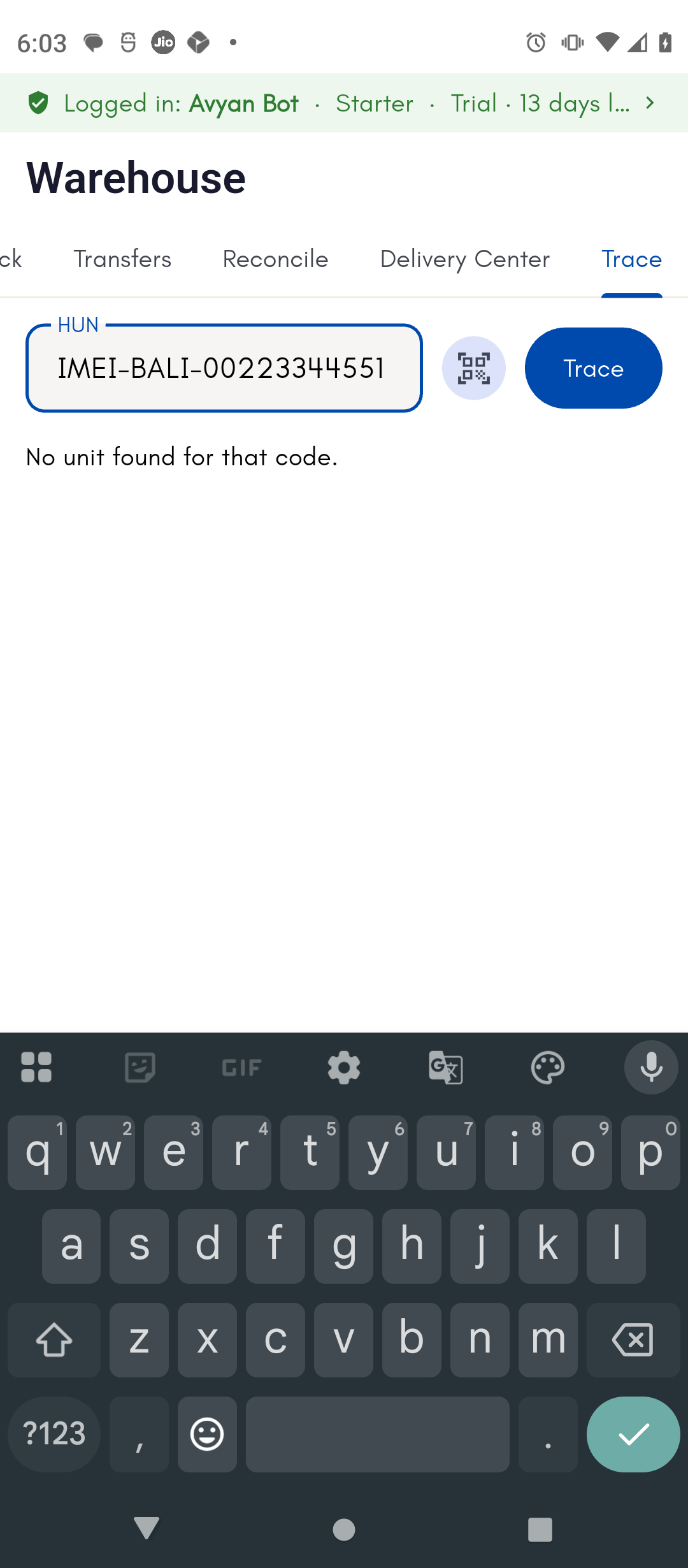
Search by serial number (for serial-tracked products — see Tracking serial numbers) or by batch number to see that exact unit’s product details, current warehouse location, status, and full movement history. Serial and batch search both support scanning a barcode instead of typing. You can also print a HUN (Hierarchical Unit Number) traceability label for a unit.See it on your device
- Phone
- Tablet
- Windows PC
Try it: Bali Electronics
1
Pick a delivery center and find the pending order
A customer’s phone order needs to ship from the Service Center
Warehouse. Vikram Bali picks it as the Delivery Center and switches to
the Incoming tab to find the pending order.
2
Dispatch the order and print the Dispatch Challan
Vikram dispatches the order, printing the Dispatch Challan. His staff
member Deepak later needs a spare copy for the courier, so he reopens
the same order from the Dispatched tab and reprints it.
3
Look up a unit by serial or HUN in the Trace tab
A few days later, Vikram switches to the Trace tab and searches for
that phone’s serial number to confirm where it was dispatched from and
its current status.