

Warehouse is an optional add-on module — turn it on from Settings →
Add-ons (Admin PIN required) if you don’t see it in your menu.
Reconciling a physical stock count
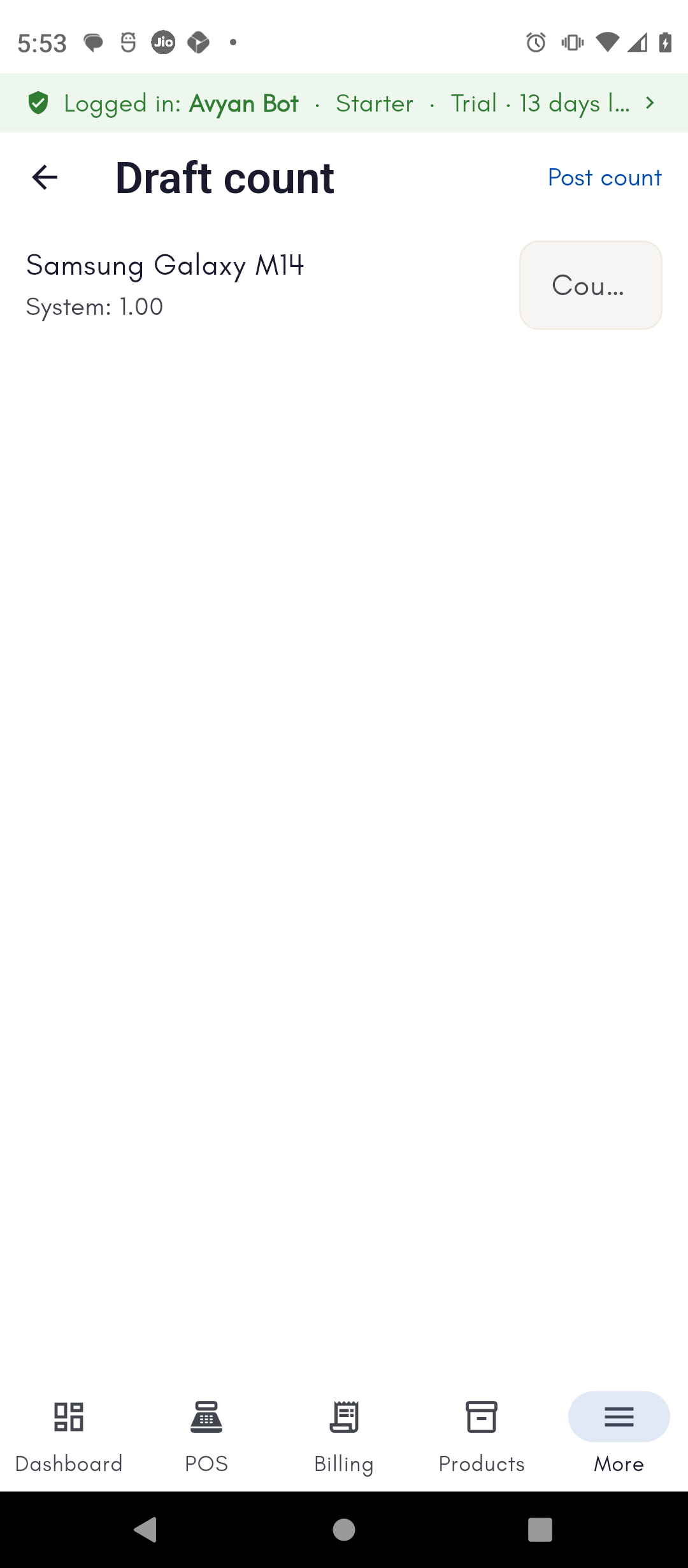
Start a draft count for a location — In-Store or any warehouse — and manually enter the quantity you counted for each product. BillBasket shows you the variance against what the system expects. When the count is right, posting the draft finalizes it and adjusts your system inventory to match what’s actually on the shelf.Writing off expired or lost stock
For batch/lot-tracked products, the Expiry view shows near-expiry and after-expiry batches per location — batch number, expiry date, and quantity. If a lot has gone bad or gone missing, mark it Expired or Lost to write it off. This zeroes its quantity and records the loss, so your stock totals stay accurate.See it on your device
- Phone
- Tablet
- Windows PC
Try it: Bali Electronics
1
Start a draft count and enter what you actually counted
Vikram Bali runs a physical stock count at his Service Center
Warehouse, starting a draft reconciliation and entering the quantity he
counted for a phone model — the system expects 1, and he counts 1 on
the shelf.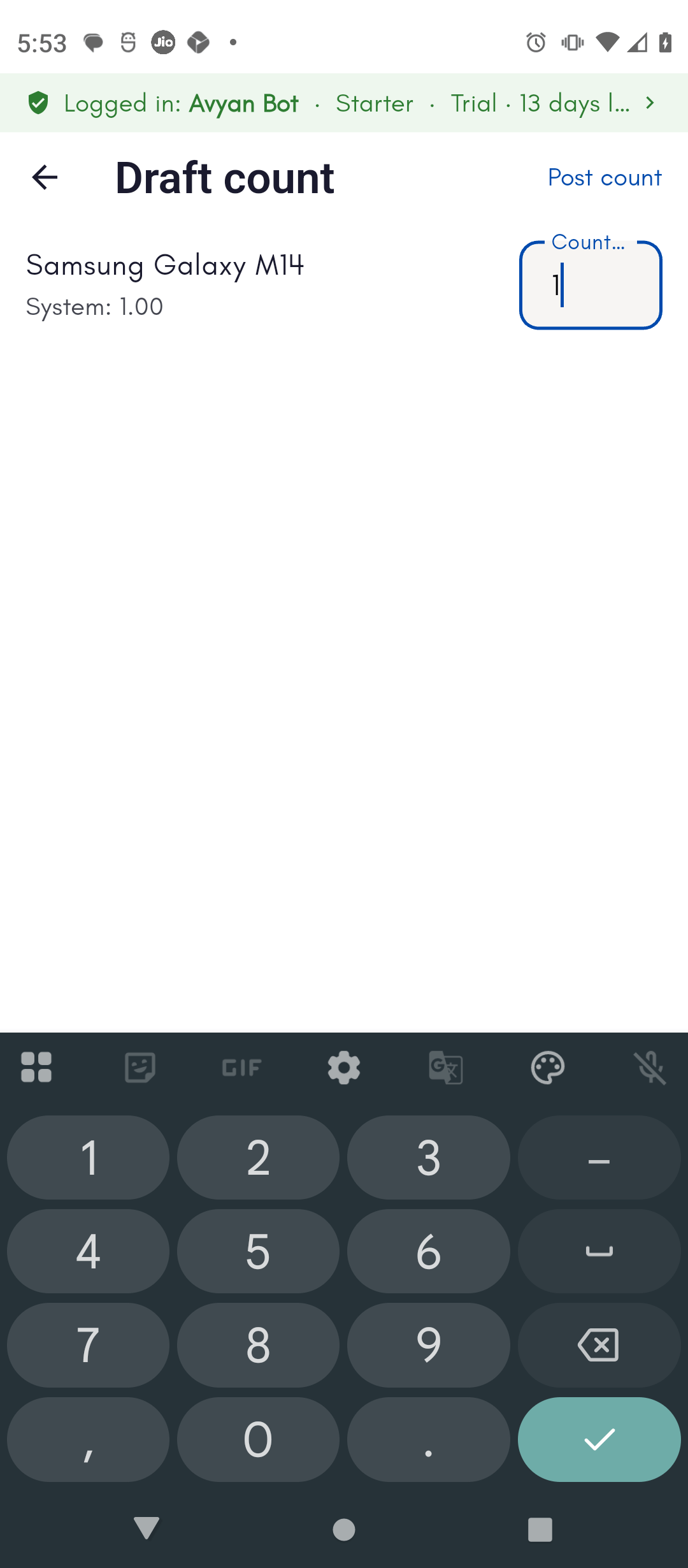
2
Post the count to finalize it
With no variance found this time, Vikram posts the count. BillBasket
confirms the reconciliation is posted and the system total stays in
sync with the shelf.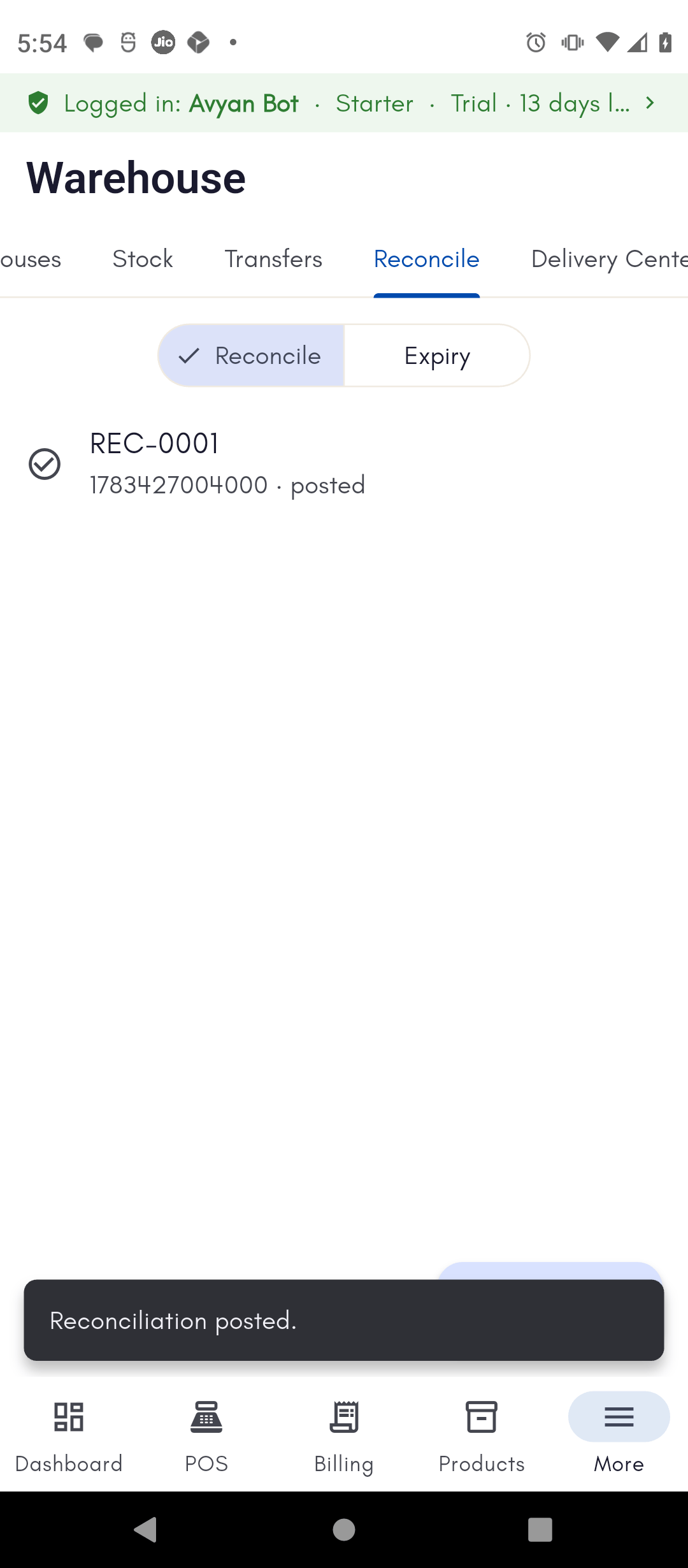
3
Switch to the Expiry view to write off a bad batch
While counting, Vikram also notices a batch of screen protectors that
expired last month. He switches to the Expiry view, finds that batch,
and marks it Expired to write it off separately from the
reconciliation.