

Warehouse is an optional add-on module — turn it on from Settings →
Add-ons (Admin PIN required) if you don’t see it in your menu.
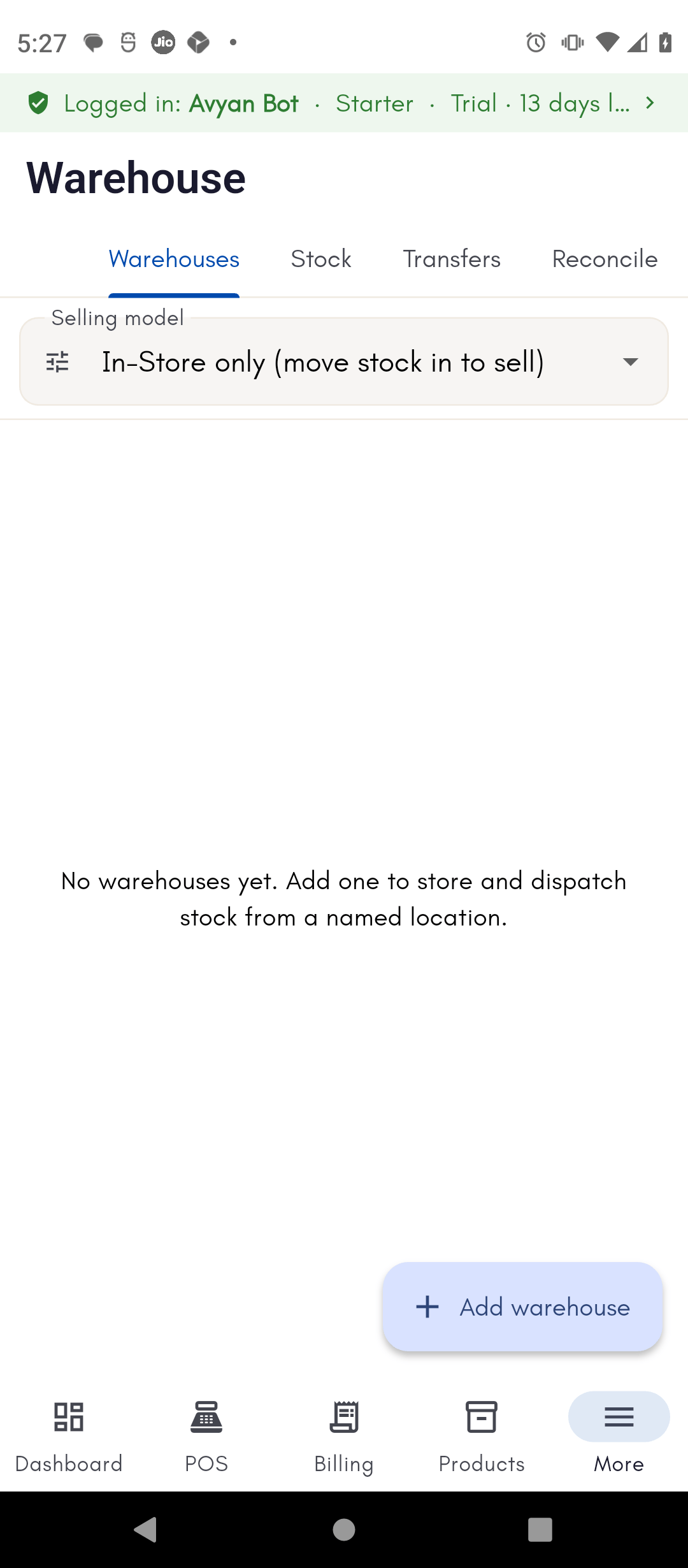
Setting up a warehouse
Open Warehouse from your menu and add a new location with its name, address, and phone number. Each warehouse has an active/inactive toggle, so you can switch off a location you’re not using without deleting its history.Choosing a sell mode
Every store has a sell mode setting that controls how stock at other locations can be sold:- Transfer — stock has to be moved into a location (In-Store or a warehouse) with a stock transfer before it can be sold from there.
- Direct — an order can pull stock straight from a chosen warehouse, without a transfer first.
Checking stock at a location
The stock view lets you pick In-Store or any warehouse from a dropdown to see that location’s current stock — product, SKU, and quantity. It’s read-only and updates automatically as sales, purchases, and transfers happen, so you’re always looking at the current picture.How to do it
See the step-by-step walkthrough for adding a warehouse and checking its stock.