

Warehouse is an optional add-on module — turn it on from Settings →
Add-ons (Admin PIN required) if you don’t see it in your menu.
Creating a transfer
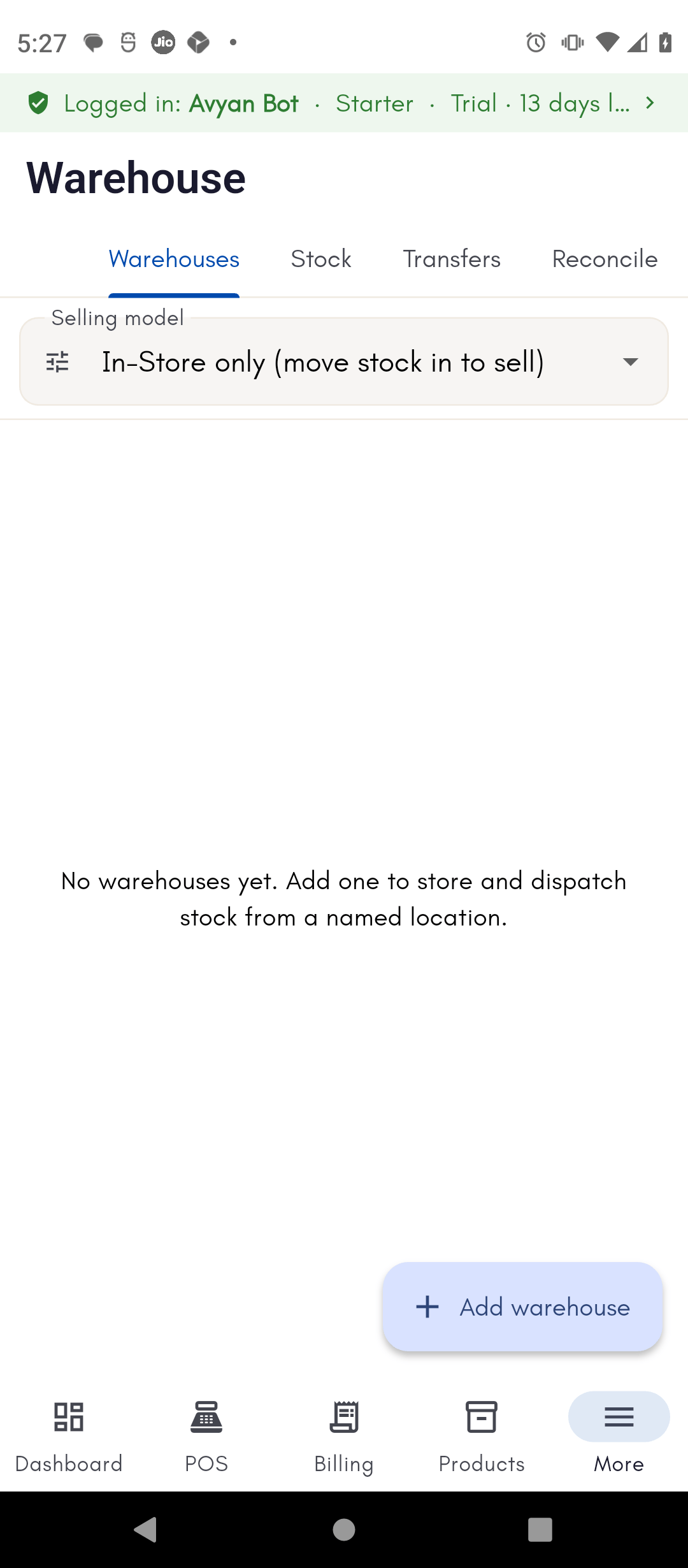
From the Warehouse screen’s Transfers tab, start a new transfer by picking a source and a destination — either can be In-Store or any warehouse you’ve set up. Then select the products and quantities to move. BillBasket only offers stock that’s actually available at the source location, so you can’t accidentally move more than you have.Tracking a transfer
Every transfer gets its own transfer number and date, and shows its current status in the transfer list — so you can always look back and confirm a move happened.How to do it
See the step-by-step walkthrough for creating and tracking a transfer.