> ## Documentation Index
> Fetch the complete documentation index at: https://docs.billbasket.app/llms.txt
> Use this file to discover all available pages before exploring further.
# External database (PostgreSQL)
> Advanced: point a high-traffic BillBasket store at your own PostgreSQL server instead of the default local file, after testing the connection safely first.
By default, BillBasket keeps each store's data in an encrypted file on the
computer itself — no setup, works offline. For a **high-traffic store** that
wants its data on a dedicated database server, BillBasket can instead connect
to your own **PostgreSQL** server.
This is an advanced, optional feature for stores that specifically need a
database server. Most shops should stay on the default local storage — it's
simpler, needs no server, and works fully offline. Only use this if you
know you need PostgreSQL.
External database is set up on the **Windows desktop** (the host). Paired
phones don't connect to PostgreSQL directly — they keep talking to the
desktop over your local network as usual. See [Companion & Web
Access](/customer-guide/settings/companion-and-web-access).
## Understanding the fields
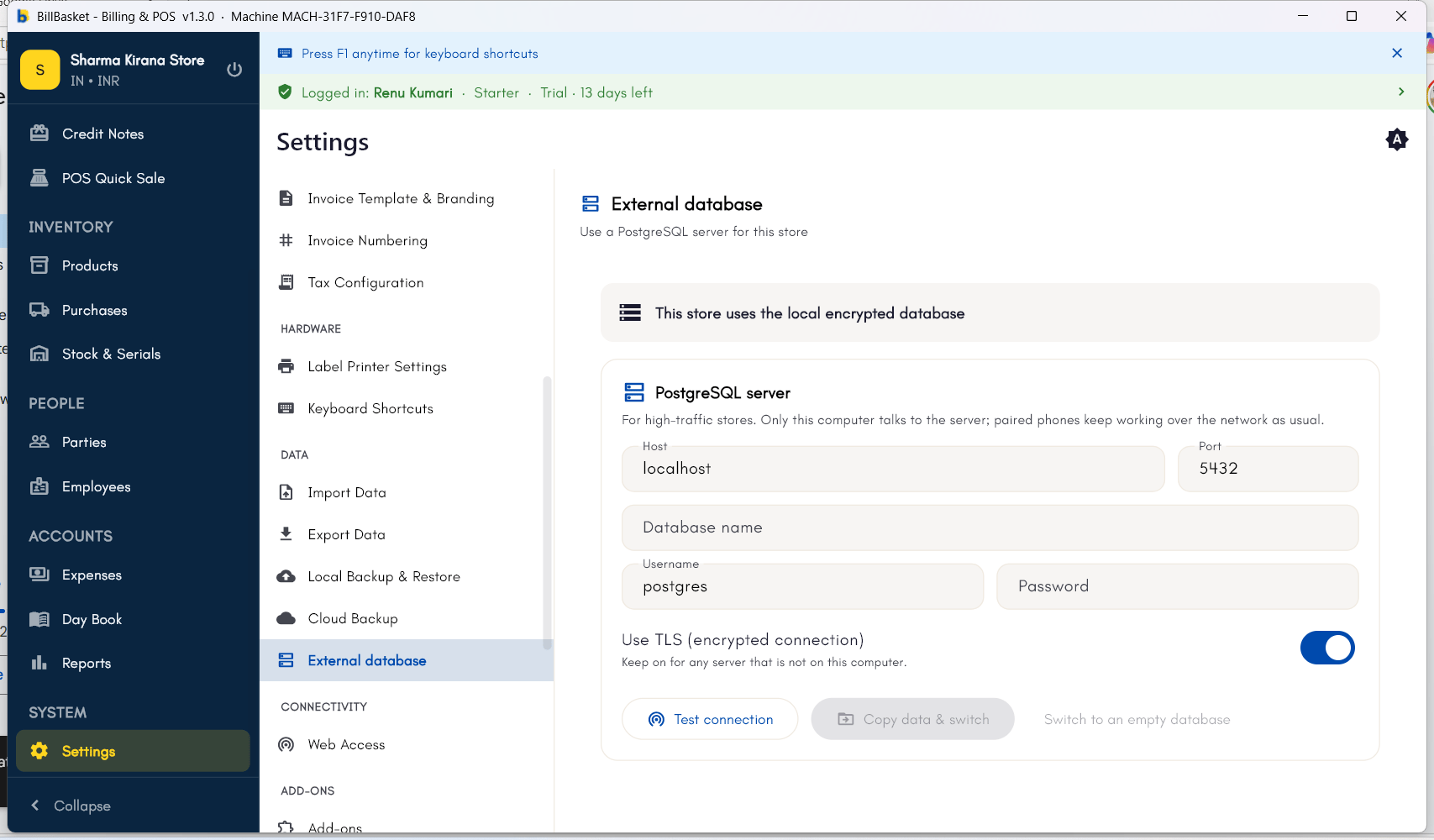
At **Settings → Data → External database**:
* **Host** — the address of your PostgreSQL server (default `localhost` if
it's the same machine).
* **Port** — the server's port (PostgreSQL's default is `5432`).
* **Database** — the name of the database to use on that server.
* **Username** and **Password** — the credentials BillBasket connects with.
* **Test connection** — checks that the details above actually reach a
working server. This **must succeed before the Switch button turns on** —
BillBasket won't let you switch to a server it can't reach, so you can't
strand your store on a bad connection.
* **Switch** — moves this store onto the PostgreSQL server. **Important:**
switching opens a *fresh, empty* database on the server — your existing
local data stays safe in the local file but is **not copied over
automatically**. The confirmation dialog spells this out before you commit.
* **Revert to local** — switches the store back to the local encrypted file
at any time, reopening your original local data.
## See it on your device
The External database screen with a store already on the local
encrypted database — Host, Port, Database name, Username, Password,
and the **Use TLS** toggle for the PostgreSQL connection, plus **Test
connection**, **Copy data & switch**, and **Switch to an empty
database** actions.
 ## Try it: Bali Electronics
Bali Electronics has grown to several busy counters, so Vikram Bali opens
**Settings → Data → External database** on the shop's Windows PC to move
the store onto the PostgreSQL server his IT person set up.
He fills in the host, port, database, username, and password, then taps
**Test connection** — only once it passes does the **Switch** button
become available.
The confirm dialog reminds Vikram that the server database starts empty
and his local data isn't copied yet. Understanding that, he confirms the
switch.
If anything about the server setup isn't right, Vikram uses **Revert to
local** to bring the store straight back to its original local file.
## Try it: Bali Electronics
Bali Electronics has grown to several busy counters, so Vikram Bali opens
**Settings → Data → External database** on the shop's Windows PC to move
the store onto the PostgreSQL server his IT person set up.
He fills in the host, port, database, username, and password, then taps
**Test connection** — only once it passes does the **Switch** button
become available.
The confirm dialog reminds Vikram that the server database starts empty
and his local data isn't copied yet. Understanding that, he confirms the
switch.
If anything about the server setup isn't right, Vikram uses **Revert to
local** to bring the store straight back to its original local file.