> ## Documentation Index
> Fetch the complete documentation index at: https://docs.billbasket.app/llms.txt
> Use this file to discover all available pages before exploring further.
# Credit notes
> Issue store credit to a customer instead of a cash refund, track each credit note's remaining balance in the Credit Notes register, and redeem it against a future bill.
A credit note is store credit you give a customer instead of handing back
cash — most often when they return something. Rather than refund money, you
issue a credit note for that amount, and the customer can spend it against a
future purchase. BillBasket keeps a running balance on each note and a full
register of all of them.
Credit notes are usually created as part of a **return** — when you pick
"Credit note" instead of "Cash" as the refund method. See [Returns &
replacements](/customer-guide/daily-billing/returns-and-replacements).
## Understanding the fields
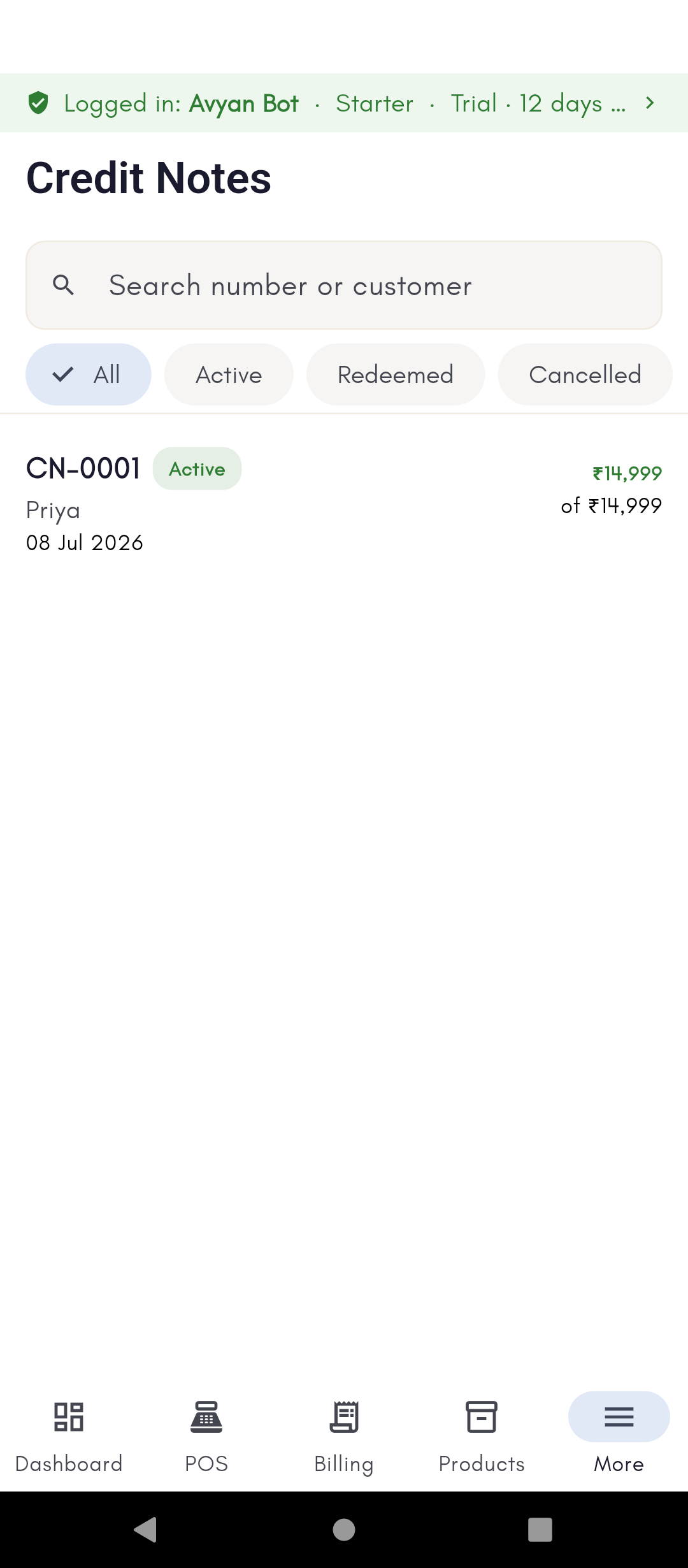
Each credit note in the register (**Billing → Credit Notes**) shows:
* **Number** — the credit note's own reference (like `CN-000001`), separate
from the invoice or return it came from.
* **Customer** — the party the credit belongs to. A credit note is tied to
one customer, so only that customer can redeem it.
* **Issued amount** — the original value of the credit note when it was
created.
* **Remaining** — how much of that value is still unused. This is the number
that matters day to day: it goes down each time the note is partly
redeemed, and hits zero when fully used.
* **Status** — **Active** (has a remaining balance to spend), **Redeemed**
(fully used up), or **Cancelled** (voided). The status is driven by the
remaining balance, so a note flips to Redeemed automatically once its
balance reaches zero.
### Finding a credit note
The register has a **search** box (by number or customer) and **status
filter chips** (All / Active / Redeemed / Cancelled), so you can quickly pull
up just the notes a customer can still spend. Tapping a note opens its
journey — where it was issued from and where it's been redeemed.
### Redeeming a credit note
At billing time, **Credit note** appears as a payment method in the payment
screen (alongside Cash, Card, UPI, and so on). Applying it draws down that
customer's available credit note balance toward the bill — you can cover the
whole bill or just part of it, with the rest paid another way. See [Taking
payment](/customer-guide/daily-billing/taking-payment) for how payment
methods combine on one bill.
## See it on your device
A credit note in the register, created from a return refunded as store
credit instead of cash — it shows the note number, customer, issue
date, **Active** status, and how much of its value is still available
to redeem.
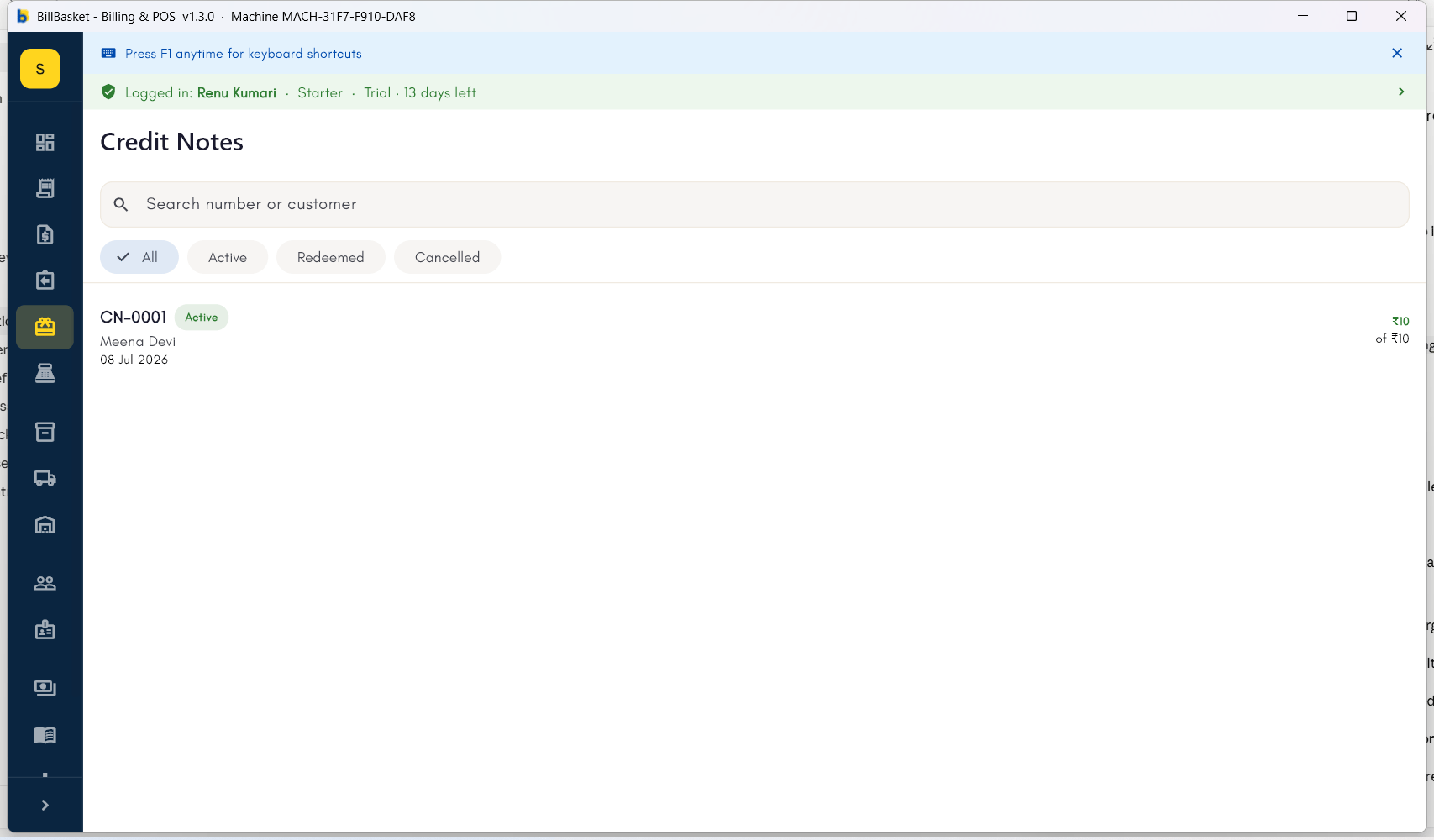 The Credit Notes register with one **Active** note — issued to Priya
from a return, showing the full ₹14,999 still available to redeem.
The Credit Notes register with one **Active** note — issued to Priya
from a return, showing the full ₹14,999 still available to redeem.
 *Screenshot coming soon — Android tablet view.*
## Try it: Sharma Kirana Store
A customer returns an item worth ₹500 but wants to buy something else
later instead of taking cash back. While processing the return, Rajesh
Sharma picks **Credit note** as the refund method — BillBasket issues a
₹500 credit note in the customer's name.
Rajesh opens **Billing → Credit Notes**, filters to **Active**, and sees
the new note with ₹500 remaining.
Next week the customer buys ₹300 of goods. At payment, Rajesh chooses
**Credit note** to apply ₹300 from their balance — the bill is settled
and the note now shows ₹200 remaining, still Active.
*Screenshot coming soon — Android tablet view.*
## Try it: Sharma Kirana Store
A customer returns an item worth ₹500 but wants to buy something else
later instead of taking cash back. While processing the return, Rajesh
Sharma picks **Credit note** as the refund method — BillBasket issues a
₹500 credit note in the customer's name.
Rajesh opens **Billing → Credit Notes**, filters to **Active**, and sees
the new note with ₹500 remaining.
Next week the customer buys ₹300 of goods. At payment, Rajesh chooses
**Credit note** to apply ₹300 from their balance — the bill is settled
and the note now shows ₹200 remaining, still Active.