> ## Documentation Index
> Fetch the complete documentation index at: https://docs.billbasket.app/llms.txt
> Use this file to discover all available pages before exploring further.
# Reminders & confirmations
> Send a booking confirmation when you make an appointment in BillBasket, and clear a daily reminders queue for upcoming visits over WhatsApp, SMS, or email.
Cutting no-shows comes down to two messages: a **confirmation** when the
booking is made, and a **reminder** before the visit. BillBasket builds both
from your saved message templates and sends them through your usual channels
— all from inside the app, with no extra notification permissions needed.
Reminders and confirmations use the message channels and templates you set
up once under [Notifications](/customer-guide/settings/notifications) — the
appointment screens just fill in the customer, service, date, and time.
## Understanding the fields
### Confirmation on booking
When you book an appointment for a customer who has a phone number or email,
the booking sheet offers **Send confirmation**. It opens the message ready to
send (over WhatsApp, SMS, or email), pre-filled with the service, date, time,
and provider. Sending it marks the booking as confirmed so you know it went
out.
### The reminders queue
Rather than scheduling phone notifications, BillBasket keeps an in-app
**reminders queue** you clear yourself:
* **Reminder lead time (hours)** — how far ahead of a visit a booking should
appear in the queue (default 24 hours). Set it in the same place as the
cancellation policy.
* **Reminders-due bell** — the Appointments home screen shows a bell with a
count of bookings coming up within that lead window that haven't been
handled yet.
* **Remind / Dismiss** — for each due booking you either **Remind** (open the
pre-filled reminder message to send) or **Dismiss** (mark it handled
without sending). Either way it leaves the queue, so the bell only ever
shows what still needs attention.
Because reminders are a queue you work through while the app is open (not
scheduled phone alarms), open BillBasket around the start of the day to
clear the bell for that day's visits.
## See it on your device
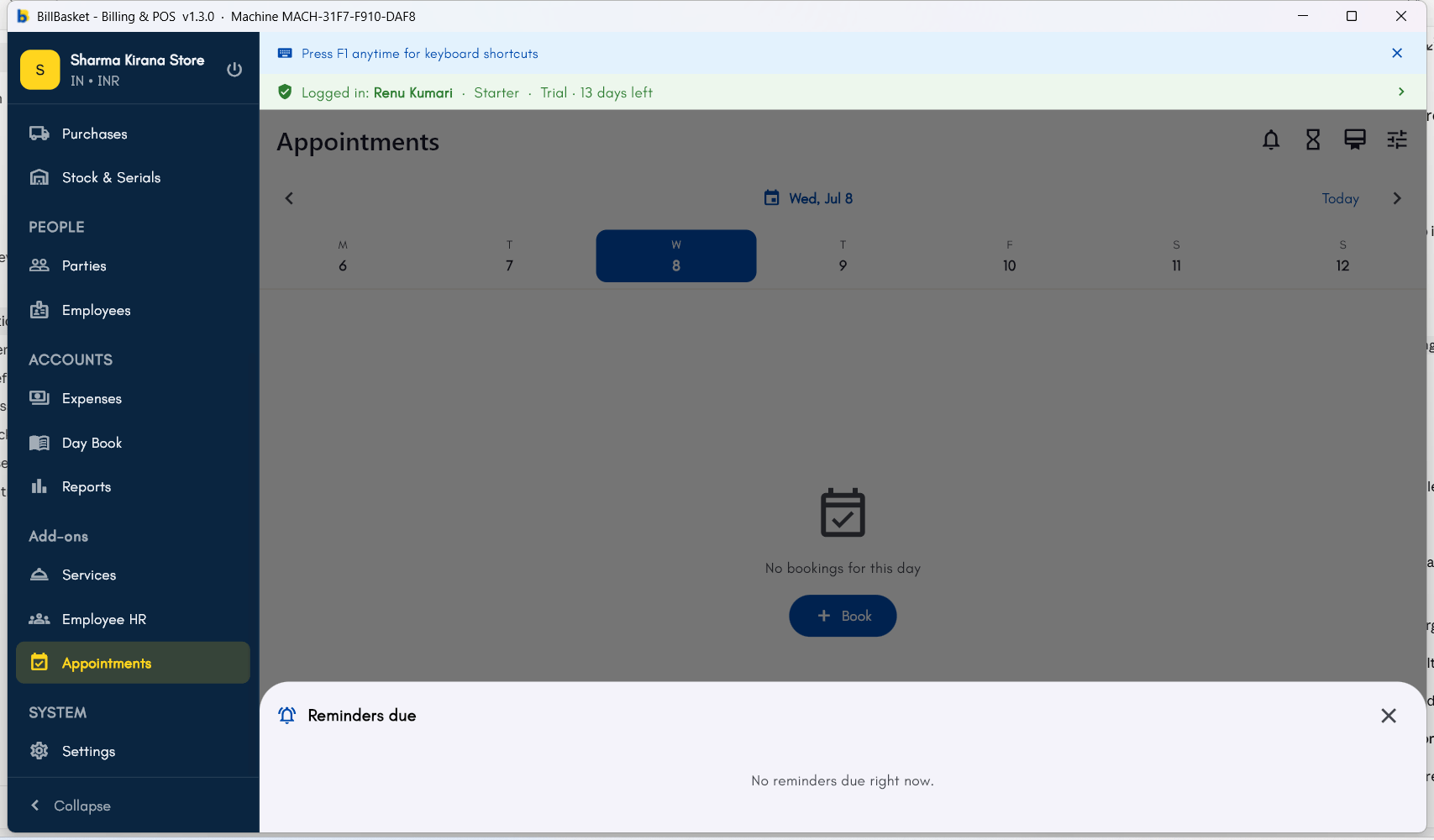
The **Reminders due** panel behind the bell icon — clear here, but
this is exactly where upcoming bookings surface within the reminder
lead window, ready to **Remind** or **Dismiss**.
 *Screenshot coming soon — Android phone view.*
*Screenshot coming soon — Android tablet view.*
## Try it: James Spa
James Fernandes books a client for tomorrow afternoon and taps **Send
confirmation** — a WhatsApp message with the service, date, and time is
ready to send, and the booking is marked confirmed.
The next morning Priya opens Appointments and sees the **reminders bell**
showing 3 visits due within the day's lead window.
She taps **Remind** on each to send the pre-filled reminder, or
**Dismiss** for the client she already spoke to — the bell clears as she
goes.
*Screenshot coming soon — Android phone view.*
*Screenshot coming soon — Android tablet view.*
## Try it: James Spa
James Fernandes books a client for tomorrow afternoon and taps **Send
confirmation** — a WhatsApp message with the service, date, and time is
ready to send, and the booking is marked confirmed.
The next morning Priya opens Appointments and sees the **reminders bell**
showing 3 visits due within the day's lead window.
She taps **Remind** on each to send the pre-filled reminder, or
**Dismiss** for the client she already spoke to — the bell clears as she
goes.