> ## Documentation Index
> Fetch the complete documentation index at: https://docs.billbasket.app/llms.txt
> Use this file to discover all available pages before exploring further.
# Session packages
> Sell prepaid or postpaid session packages in BillBasket — bundle a number of sessions, track how many a customer has left, and draw one down as they book.
Many service businesses sell **packages** — a bundle of sessions the
customer pays for up front (or settles later) and uses over time. BillBasket
tracks each package's remaining sessions and lets you draw one down when the
customer comes in, instead of billing every visit separately.
## Understanding the fields
When you **sell a package** to a customer:
* **Service** (optional) — the service the package is for, or leave it blank
for a package that can be used against any service.
* **Sessions included** — how many sessions the package covers. BillBasket
counts down from here as sessions are used.
* **Price paid** — the package price.
* **Payment mode** — **Prepaid** (paid now — recorded as an advance/credit
on the customer's account) or **Postpaid** (settled later — no payment
taken now). This choice decides whether money is collected at sale time.
* **Expiry** (optional) — a date after which unused sessions lapse. Leave it
blank for a package that never expires.
* **Carry-forward** — whether unused sessions roll over rather than being
lost, where your policy allows it.
### How sessions are drawn down
Each package tracks **sessions included** versus **sessions consumed**, so a
customer's remaining balance is always clear. When you complete an
appointment for a customer who has a usable package covering that service,
BillBasket offers **"Use package (N left)"** — choosing it consumes one
session and completes the visit **instead of billing it**. If a customer has
more than one usable package, the one with the fewest sessions left is drawn
down first, so nothing is wasted.
## See it on your device
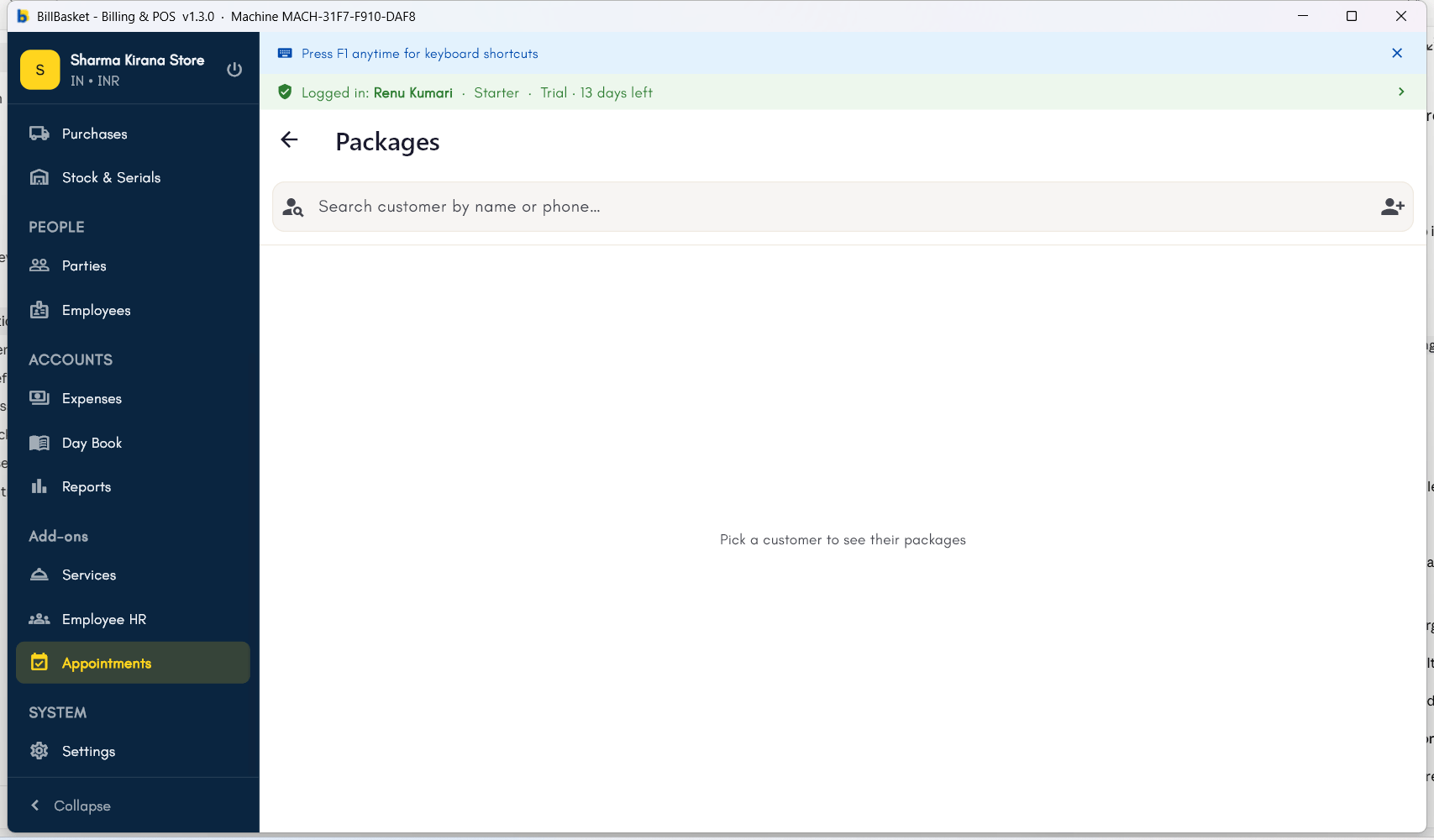
The **Packages** screen — search for a customer by name or phone to
see and manage their session packages; add a new customer on the spot
with the icon on the right if they're not in your Parties list yet.
 *Screenshot coming soon — Android phone view.*
*Screenshot coming soon — Android tablet view.*
## Try it: James Spa
A regular client wants a course of massages. James Fernandes opens
**Packages**, picks the client, sets the service to "Aromatherapy
Massage", 10 sessions included, marks it **Prepaid**, and takes payment —
recorded as an advance on the client's account.
When the client comes in and James completes the appointment, BillBasket
shows **"Use package (10 left)"** — he taps it, the visit is completed
without a separate bill, and the package now reads 9 left.
Each visit draws one more session, so James and the client can always see
how many remain — and, if he set an expiry or carry-forward rule, how
long they last.
*Screenshot coming soon — Android phone view.*
*Screenshot coming soon — Android tablet view.*
## Try it: James Spa
A regular client wants a course of massages. James Fernandes opens
**Packages**, picks the client, sets the service to "Aromatherapy
Massage", 10 sessions included, marks it **Prepaid**, and takes payment —
recorded as an advance on the client's account.
When the client comes in and James completes the appointment, BillBasket
shows **"Use package (10 left)"** — he taps it, the visit is completed
without a separate bill, and the package now reads 9 left.
Each visit draws one more session, so James and the client can always see
how many remain — and, if he set an expiry or carry-forward rule, how
long they last.