> ## Documentation Index
> Fetch the complete documentation index at: https://docs.billbasket.app/llms.txt
> Use this file to discover all available pages before exploring further.
# Bookable services setup
> Choose which BillBasket services can be booked as appointments and set each one's duration, how many can run at once, and a gap between bookings.
Before you can book appointments, you tell BillBasket which of your services
are bookable and how each one behaves on the calendar — how long it takes,
how many can run at the same time, and whether to leave a gap between
bookings. This is what makes the [booking
form](/customer-guide/appointments/booking-basics) fill in end times and stop
double-booking automatically.
## Understanding the fields
On the **Bookable services** screen, each service has:
* **Bookable** (toggle) — whether this service shows up as an option when
booking an appointment. A service you sell over the counter but never book
a time for can stay off.
* **Duration (minutes)** — how long the service takes. This is what the
booking form uses to fill in the end time automatically, so a booking's
length matches reality without anyone doing the math.
* **Parallel capacity** — how many of this service can run in the same time
slot (for example, 3 if you have three chairs). BillBasket blocks a booking
once a slot hits this number. Note the interaction with staff: if you
assign a specific **provider** to a booking, that provider can only do one
at a time regardless of this number — so capacity is the *upper* limit,
and an assigned provider narrows it to one.
* **Buffer (minutes)** — a gap left after each booking (for cleanup, turnover,
notes) before the next one can start. Increasing the buffer effectively
spaces bookings further apart.
* **Colour** — an optional colour to tell services apart at a glance on the
agenda.
## See it on your device
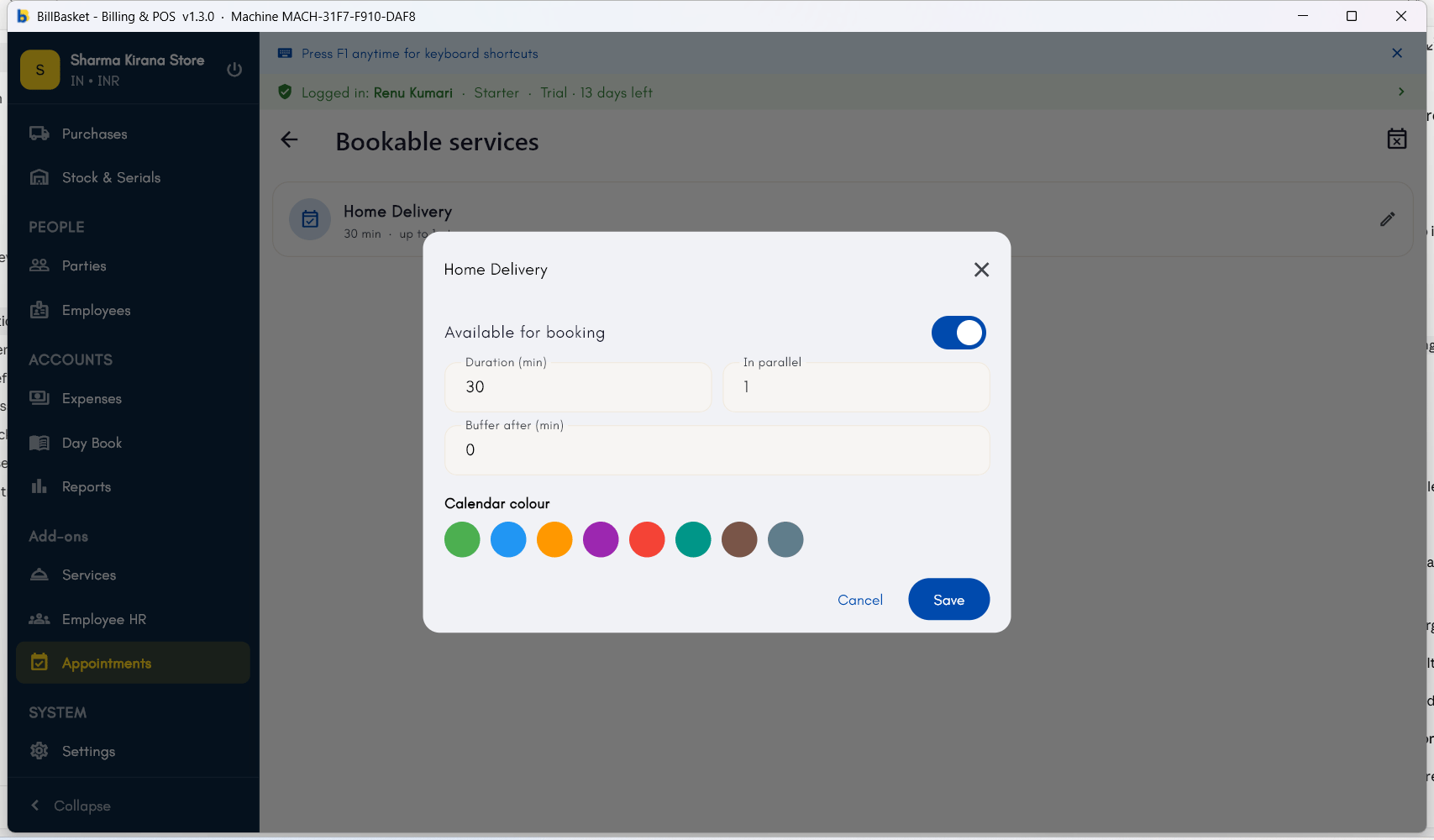
A service's bookable settings — **Available for booking** toggled on,
with Duration, In parallel (capacity), and Buffer after all set, plus
a Calendar colour picker to tell services apart on the agenda.
 *Screenshot coming soon — Android phone view.*
*Screenshot coming soon — Android tablet view.*
## Try it: James Spa
James Fernandes opens the Bookable services screen from the Appointments
module to set up how his treatments book.
For "Aromatherapy Massage" he turns on **Bookable**, sets the duration to
60 minutes, and sets parallel capacity to 2 — the spa has two massage
rooms.
He adds a 15-minute **buffer** so the room can be reset between clients,
which automatically spaces those bookings apart on the agenda.
Now when Priya books that service, the end time and the two-room limit
are applied automatically — see [Booking
basics](/customer-guide/appointments/booking-basics).
*Screenshot coming soon — Android phone view.*
*Screenshot coming soon — Android tablet view.*
## Try it: James Spa
James Fernandes opens the Bookable services screen from the Appointments
module to set up how his treatments book.
For "Aromatherapy Massage" he turns on **Bookable**, sets the duration to
60 minutes, and sets parallel capacity to 2 — the spa has two massage
rooms.
He adds a 15-minute **buffer** so the room can be reset between clients,
which automatically spaces those bookings apart on the agenda.
Now when Priya books that service, the end time and the two-room limit
are applied automatically — see [Booking
basics](/customer-guide/appointments/booking-basics).